
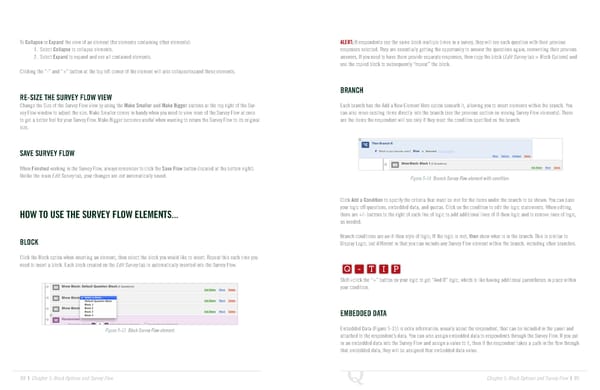
To Collapse or Expand the view of an element (for elements containing other elements): ALERT: If respondents see the same block multiple times in a survey, they will see each question with their previous 1. Select Collapse to collapse elements. responses selected. They are essentially getting the opportunity to answer the questions again, overwriting their previous 2. Select Expand to expand and see all contained elements. answers. If you need to have them provide separate responses, then copy the block (Edit Survey tab > Block Options) and use the copied block to subsequently “repeat” the block. Clicking the “-” and “+” button at the top left corner of the element will also collapse/expand these elements. BRANCH RE-SIZE THE SURVEY FLOW VIEW Change the Size of the Survey Flow view by using the Make Smaller and Make Bigger buttons at the top right of the Sur- Each branch has the Add a New Element Here option beneath it, allowing you to insert elements within the branch. You vey Flow window to adjust the size. Make Smaller comes in handy when you need to view more of the Survey Flow at once can also move existing items directly into the branch (see the previous section on moving Survey Flow elements). These to get a better feel for your Survey Flow. Make Bigger becomes useful when wanting to return the Survey Flow to its original are the items the respondent will see only if they meet the condition specified on the branch. size. SAVE SURVEY FLOW When Finished working in the Survey Flow, always remember to click the Save Flow button (located at the bottom right). Unlike the main Edit Survey tab, your changes are not automatically saved. Figure 5-14 Branch Survey Flow element with condition. Click Add a Condition to specify the criteria that must be met for the items under the branch to be shown. You can base your logic off questions, embedded data, and quotas. Click on the condition to edit the logic statements. When editing, HOW TO USE THE SURVEY FLOW ELEMENTS... there are +/- buttons to the right of each line of logic to add additional lines of if-then logic and to remove lines of logic, as needed. Branch conditions are an if-then style of logic; If the logic is met, then show what is in the branch. This is similar to BLOCK Q-TIP -TIP Display Logic, but different in that you can include any Survey Flow element within the branch, including other branches. Click the Block option when inserting an element, then select the block you would like to insert. Repeat this each time you Q - T I P need to insert a block. Each block created on the Edit Survey tab is automatically inserted into the Survey Flow. Q - T I P Shift+click the “+” button on your logic to get “And If” logic, which is like having additional parentheses in place within - T I P your condition. EMBEDDED DATA Figure 5-13 Block Survey Flow element. Embedded Data (Figure 5-15) is extra information, usually about the respondent, that can be included in the panel and attached to the respondent’s data. You can also assign embedded data to respondents through the Survey Flow. If you put in an embedded data into the Survey Flow and assign a value to it, then if the respondent takes a path in the flow through that embedded data, they will be assigned that embedded data value. 88 | Chapter 5: Block Options and Survey Flow Chapter 5: Block Options and Survey Flow | 89
 The Complete Research Suite Page 44 Page 46