
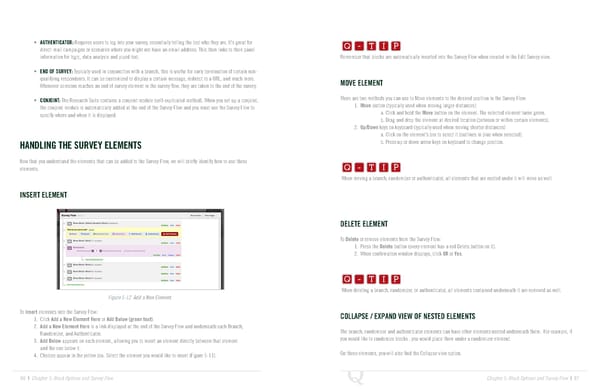
Q-TIP -TIP Q - T I P • AUTHENTICATOR: Requires users to log into your survey, essentially telling the tool who they are. It’s great for Q - T I P direct-mail campaigns or scenarios where you might not have an email address. This then links to their panel information for logic, data analysis and piped text. Remember that blocks are automatically inserted into the Survey Flow when created in the Edit Survey view. - T I P • END OF SURVEY: Typically used in conjunction with a branch, this is useful for early termination of certain non- qualifying respondents. It can be customized to display a certain message, redirect to a URL, and much more. MOVE ELEMENT Whenever someone reaches an end of survey element in the survey flow, they are taken to the end of the survey. • CONJOINT: The Research Suite contains a conjoint module (self-explicated method). When you set up a conjoint, There are two methods you can use to Move elements to the desired position in the Survey Flow: the conjoint module is automatically added at the end of the Survey Flow and you must use the Survey Flow to 1. Move button (typically used when moving larger distances) specify where and when it is displayed. a. Click and hold the Move button on the element. The selected element turns green. b. Drag and drop the element at desired location (between or within certain elements). 2. Up/Down keys on keyboard (typically used when moving shorter distances) a. Click on the element’s box to select it (outlines in blue when selected). Q-TIP -TIP HANDLING THE SURVEY ELEMENTS b. Press up or down arrow keys on keyboard to change position. Q - T I P Now that you understand the elements that can be added to the Survey Flow, we will briefly identify how to use these Q - T I P elements. When moving a branch, randomizer or authenticator, all elements that are nested under it will move as well. - T I P INSERT ELEMENT DELETE ELEMENT To Delete or remove elements from the Survey Flow: 1. Press the Delete button (every element has a red Delete button on it). Q-TIP -TIP 2. When confirmation window displays, click OK or Yes. Q - T I P Q - T I P When deleting a branch, randomizer, or authenticator, all elements contained underneath it are removed as well. Figure 5-12 Add a New Element. - T I P To Insert elements into the Survey Flow: COLLAPSE / EXPAND VIEW OF NESTED ELEMENTS 1. Click Add a New Element Here or Add Below (green text). 2. Add a New Element Here is a link displayed at the end of the Survey Flow and underneath each Branch, Randomizer, and Authenticator. The branch, randomizer and authenticator elements can have other elements nested underneath them. For example, if 3. Add Below appears on each element, allowing you to insert an element directly between that element you would like to randomize blocks , you would place them under a randomizer element. and the one below it. 4. Choices appear in the yellow box. Select the element you would like to insert (Figure 5-11). On these elements, you will also find the Collapse view option. 86 | Chapter 5: Block Options and Survey Flow Chapter 5: Block Options and Survey Flow | 87
 The Complete Research Suite Page 43 Page 45