
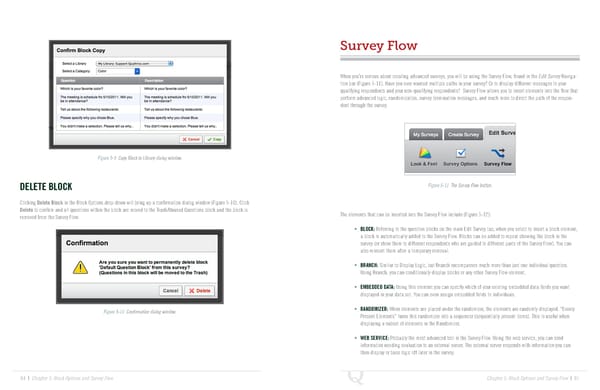
Survey Flow When you’re serious about creating advanced surveys, you will be using the Survey Flow, found in the Edit Survey Naviga- tion bar (Figure 5-11). Have you ever wanted multiple paths in your survey? Or to display different messages to your qualifying respondents and your non-qualifying respondents? Survey Flow allows you to insert elements into the flow that perform advanced logic, randomization, survey termination messages, and much more to direct the path of the respon- dent through the survey. Figure 5-9 Copy Block to Library dialog window. DELETE BLOCK Figure 5-11 The Survey Flow button. Clicking Delete Block in the Block Options drop-down will bring up a confirmation dialog window (Figure 5-10). Click Delete to confirm and all questions within the block are moved to the Trash/Unused Questions block and the block is The elements that can be inserted into the Survey Flow include (Figure 5-12): removed from the Survey Flow. • BLOCK: Referring to the question blocks on the main Edit Survey tab, when you select to insert a block element, a block is automatically added to the Survey Flow. Blocks can be added to repeat showing the block in the survey (or show them to different respondents who are guided to different parts of the Survey Flow). You can also reinsert them after a temporary removal. • BRANCH: Similar to Display Logic, but Branch encompasses much more than just one individual question. Using Branch, you can conditionally display blocks or any other Survey Flow element. • EMBEDDED DATA: Using this element you can specify which of your existing embedded data fields you want displayed in your data set. You can even assign embedded fields to individuals. Figure 5-10 Confirmation dialog window. • RANDOMIZER: When elements are placed under the randomizer, the elements are randomly displayed. “Evenly Present Elements” turns this randomizer into a sequencer (sequentially present items). This is useful when displaying a subset of elements in the Randomizer. • WEB SERVICE: Probably the most advanced tool in the Survey Flow. Using the web service, you can send information needing evaluation to an external server. The external server responds with information you can then display or base logic off later in the survey. 84 | Chapter 5: Block Options and Survey Flow Chapter 5: Block Options and Survey Flow | 85
 The Complete Research Suite Page 42 Page 44