
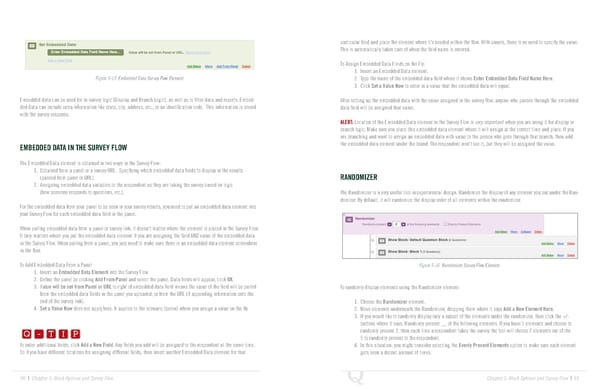
particular field and place the element where it’s needed within the flow. With panels, there is no need to specify the value. This is automatically taken care of when the field name is entered. To Assign Embedded Data Fields on the Fly: 1. Insert an Embedded Data element. Figure 5-15 Embedded Data Survey Flow Element. 2. Type the name of the embedded data field where it shows Enter Embedded Data Field Name Here. 3. Click Set a Value Now to enter in a value that the embedded data will equal. Embedded data can be used for in-survey logic (Display and Branch Logic), as well as to filter data and reports. Embed- After setting up the embedded data with the value assigned in the survey flow, anyone who passes through the embedded ded Data can include extra information like state, city, address, etc., or an identification code. This information is stored data field will be assigned that value. with the survey response. ALERT: Location of the Embedded Data element in the Survey Flow is very important when you are using it for display or branch logic. Make sure you place this embedded data element where it will assign at the correct time and place. If you are branching and want to assign an embedded data with value to the person who goes through that branch, then add EMBEDDED DATA IN THE SURVEY FLOW the embedded data element under the brand. The respondent won’t see it, but they will be assigned the value. The Embedded Data element is obtained in two ways in the Survey Flow: 1. Obtained from a panel or a survey URL. Specifying which embedded data fields to display in the results (passed from panel or URL). RANDOMIZER 2. Assigning embedded data variables to the respondent as they are taking the survey based on logic (how someone responds to questions, etc.). The Randomizer is a very useful tool in experimental design. Randomize the display of any element you put under the Ran- domizer. By default, it will randomize the display order of all elements within the randomizer. For the embedded data from your panel to be seen in your survey results, you need to put an embedded data element into your Survey Flow for each embedded data field in the panel. When pulling embedded data from a panel or survey link, it doesn’t matter where the element is placed in the Survey Flow. It only matters where you put the embedded data element if you are assigning the field AND value of the embedded data in the Survey Flow. When pulling from a panel, you just need to make sure there is an embedded data element somewhere in the flow. To Add Embedded Data From a Panel Figure 5-16 Randomizer Survey Flow Element. 1. Insert an Embedded Data Element into the Survey Flow 2. Define the panel by clicking Add From Panel and select the panel. Data fields will appear, click OK. 3. Value will be set from Panel or URL to right of embedded data field means the value of the field will be pulled To randomly display elements using the Randomizer element: from the embedded data fields in the panel you uploaded, or from the URL (if appending information onto the end of the survey link). 1. Choose the Randomizer element. Q-TIP -TIP 4. Set a Value Now does not apply here. It applies to the scenario (below) where you assign a value on the fly. 2. Move elements underneath the Randomizer, dropping them where it says Add a New Element Here. Q - T I P 3. If you would like to randomly display only a subset of the elements under the randomizer, then click the +/- buttons where it says, Randomly present __ of the following elements. If you have 5 elements and choose to Q - T I P randomly present 2, then each time a respondent takes the survey the tool will choose 2 elements out of the 5 to randomly present to the respondent. To enter additional fields, click Add a New Field. Any fields you add will be assigned to the respondent at the same time. 4. In this situation, you might consider selecting the Evenly Present Elements option to make sure each element - T I P So if you have different locations for assigning different fields, then insert another Embedded Data element for that gets seen a decent amount of times. 90 | Chapter 5: Block Options and Survey Flow Chapter 5: Block Options and Survey Flow | 91
 The Complete Research Suite Page 45 Page 47