
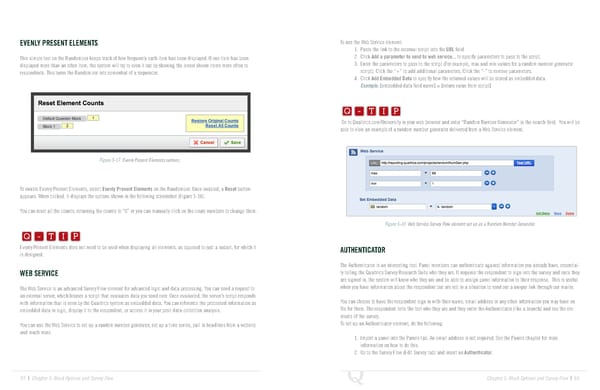
EVENLY PRESENT ELEMENTS To use the Web Service element: 1. Paste the link to the external script into the URL field. This simple tool on the Randomizer keeps track of how frequently each item has been displayed. If one item has been 2. Click Add a parameter to send to web service... to specify parameters to pass to the script. displayed more than an other item, the system will try to even it out by showing the lesser shown items more often to 3. Enter the parameters to pass to the script (For example, max and min values for a random number generator respondents. This turns the Randomizer into somewhat of a sequencer. script). Click the “+” to add additional parameters. Click the “-” to remove parameters. 4. Click Add Embedded Data to specify how the returned values will be stored as embedded data. Q-TIP -TIP Example: [embedded data field name] = [return value from script] Q - T I P Q - T I P Go to Qualtrics.com/University in your web browser and enter “Random Number Generator” in the search field. You will be - T I P able to view an example of a random number generator delivered from a Web Service element. Figure 5-17 Evenly Present Elements options. To enable Evenly Present Elements, select Evenly Present Elements on the Randomizer. Once enabled, a Reset button appears. When clicked, it displays the options shown in the following screenshot (Figure 5-16). Q-TIP -TIP You can reset all the counts, returning the counts to “0” or you can manually click on the count numbers to change them. Q - T I P Figure 5-18 Web Service Survey Flow element set up as a Random Number Generator. Q - T I P Evenly Present Elements does not need to be used when displaying all elements, as opposed to just a subset, for which it AUTHENTICATOR - T I P is designed. The Authenticator is an interesting tool. Panel members can authenticate against information you already have, essential- WEB SERVICE ly telling the Qualtrics Survey Research Suite who they are. It requires the respondent to sign into the survey and once they are signed in, the system will know who they are and be able to assign panel information to their response. This is useful The Web Service is an advanced Survey Flow element for advanced logic and data processing. You can send a request to when you have information about the respondent but are not in a situation to send out a unique link through our mailer. an external server, which houses a script that evaluates data you send over. Once evaluated, the server’s script responds with information that is seen by the Qualtrics system as embedded data. You can reference the processed information as You can choose to have the respondent sign in with their name, email address or any other information you may have on embedded data in logic, display it to the respondent, or access it in your post-data-collection analysis. file for them. The respondent tells the tool who they are and they enter the Authenticator (like a branch) and see the ele- ments of the survey. You can use the Web Service to set up a random number generator, set up a time series, pull in headlines from a website To set up an Authenticator element, do the following: and much more. 1. Import a panel into the Panels tab. An email address is not required. See the Panels chapter for more information on how to do this. 2. Go to the Survey Flow (Edit Survey tab) and insert an Authenticator. 92 | Chapter 5: Block Options and Survey Flow Chapter 5: Block Options and Survey Flow | 93
 The Complete Research Suite Page 46 Page 48