
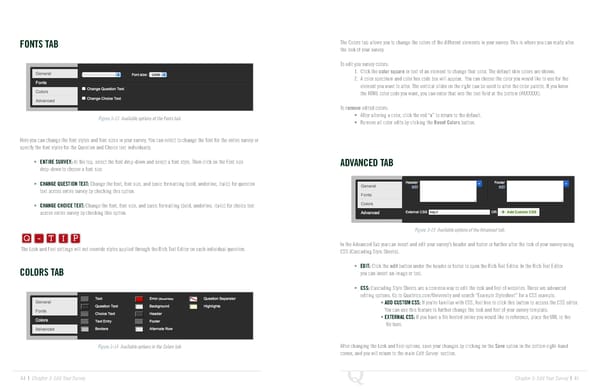
FONTS TAB The Colors tab allows you to change the colors of the different elements in your survey. This is where you can really alter the look of your survey. To edit you survey colors: 1. Click the color square or text of an element to change that color. The default skin colors are shown. 2. A color spectrum and color hex code box will appear. You can choose the color you would like to use for the element you want to alter. The vertical slider on the right can be used to alter the color palette. If you know the HTML color code you want, you can enter that into the text field at the bottom (#XXXXXX). To remove edited colors: Figure 3-13 Available options of the Fonts tab. • After altering a color, click the red “x” to return to the default. • Remove all color edits by clicking the Reset Colors button. Here you can change the font styles and font sizes in your survey. You can select to change the font for the entire survey or specify the font styles for the Question and Choice text individually. • ENTIRE SURVEY: At the top, select the font drop-down and select a font style. Then click on the Font size ADVANCED TAB drop-down to choose a font size. • CHANGE QUESTION TEXT: Change the font, font size, and basic formatting (bold, underline, italic) for question text across entire survey by checking this option. • CHANGE CHOICE TEXT: Change the font, font size, and basic formatting (bold, underline, italic) for choice text Q-TIP -TIP across entire survey by checking this option. Q - T I P Figure 3-15 Available options of the Advanced tab. Q - T I P In the Advanced Tab you can insert and edit your survey’s header and footer or further alter the look of your survey using The Look and Feel settings will not override styles applied through the Rich Text Editor on each individual question. CSS (Cascading Style Sheets). - T I P • EDIT: Click the edit button under the header or footer to open the Rich Text Editor. In the Rich Text Editor COLORS TAB you can insert an image or text. • CSS: Cascading Style Sheets are a common way to edit the look and feel of websites. These are advanced editing options. Go to Qualtrics.com/University and search “Example Stylesheet” for a CSS example. • ADD CUSTOM CSS: If you’re familiar with CSS, feel free to click this button to access the CSS editor. You can use this feature to further change the look and feel of your survey template. • EXTERNAL CSS: If you have a file hosted online you would like to reference, place the URL to the file here. Figure 3-14 Available options in the Colors tab. After changing the Look and Feel options, save your changes by clicking on the Save option in the bottom right-hand corner, and you will return to the main Edit Survey section. 44 | Chapter 3: Edit Your Survey Chapter 3: Edit Your Survey | 45
 The Complete Research Suite Page 22 Page 24