
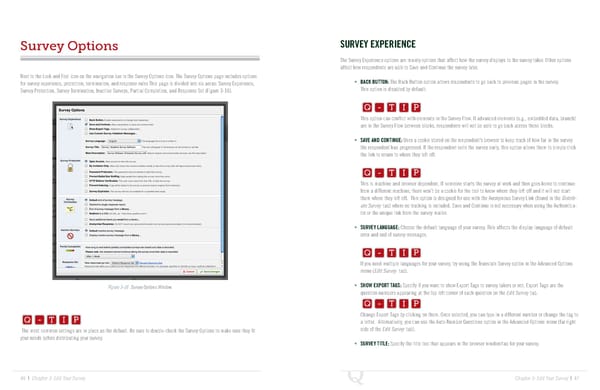
Survey Options SURVEY EXPERIENCE The Survey Experience options are mainly options that affect how the survey displays to the survey taker. Other options affect how respondents are able to Save and Continue the survey later. Next to the Look and Feel icon on the navigation bar is the Survey Options icon. The Survey Options page includes options Q-TIP -TIP for survey experience, protection, termination, and response rules This page is divided into six areas: Survey Experience, • BACK BUTTON: The Back Button option allows respondents to go back to previous pages in the survey. Survey Protection, Survey Termination, Inactive Surveys, Partial Completion, and Response Set (Figure 3-16). This option is disabled by default. Q - T I P Q - T I P This option can conflict with elements in the Survey Flow. If advanced elements (e.g., embedded data, branch) - T I P are in the Survey Flow between blocks, respondents will not be able to go back across those blocks. • SAVE AND CONTINUE: Uses a cookie stored on the respondent’s browser to keep track of how far in the survey Q-TIP -TIP the respondent has progressed. If the respondent exits the survey early, this option allows them to simply click the link to return to where they left off. Q - T I P P Q - T I This is machine and browser dependent. If someone starts the survey at work and then goes home to continue - T I P from a different machine, there won’t be a cookie for the tool to know where they left off and it will not start them where they left off. This option is designed for use with the Anonymous Survey Link (found in the Distrib- ute Survey tab) where no tracking is included. Save and Continue is not necessary when using the Authentica- tor or the unique link from the survey mailer. Q-TIP -TIP • SURVEY LANGUAGE: Choose the default language of your survey. This affects the display language of default error and end of survey messages. Q - T I P Q - T I P If you need multiple languages for your survey, try using the Translate Survey option in the Advanced Options - T I P menu (Edit Survey tab). Q-TIP -TIP -TIP Figure 3-16 Survey Options Window. • SHOW EXPORT TAGS: Specify if you want to show Export Tags to survey takers or not. Export Tags are the Q - T I P Q-TIP question numbers appearing at the top left corner of each question on the Edit Survey tab. Q - T I P Q - T I P Change Export Tags by clicking on them. Once selected, you can type in a different number or change the tag to Q - T I P - T I P a letter. Alternatively, you can use the Auto-Number Questions option in the Advanced Options menu (far right The most common settings are in place as the default. Be sure to double-check the Survey Options to make sure they fit side of the Edit Survey tab). - T I P your needs before distributing your survey. • SURVEY TITLE: Specify the title text that appears in the browser window/tab for your survey. 46 | Chapter 3: Edit Your Survey Chapter 3: Edit Your Survey | 47
 The Complete Research Suite Page 23 Page 25