
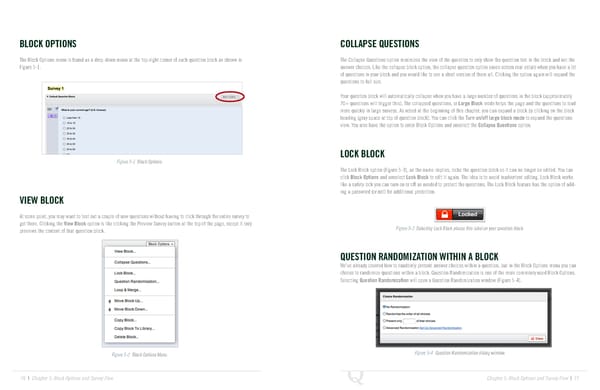
BLOCK OPTIONS COLLAPSE QUESTIONS The Block Options menu is found as a drop-down menu at the top-right corner of each question block as shown in The Collapse Questions option minimizes the view of the question to only show the question text in the block and not the Figure 5-1. answer choices. Like the collapse block option, the collapse question option saves screen real estate when you have a lot of questions in your block and you would like to see a short version of them all. Clicking the option again will expand the questions to full size. Your question block will automatically collapse when you have a large number of questions in the block (approximately 70+ questions will trigger this). The collapsed questions, or Large Block mode helps the page and the questions to load more quickly in large surveys. As noted at the beginning of this chapter, you can expand a block by clicking on the block heading (gray space at top of question block). You can click the Turn on/off large block mode to expand the questions view. You also have the option to enter Block Options and unselect the Collapse Questions option. LOCK BLOCK Figure 5-1 Block Options. The Lock Block option (Figure 5-3), as the name implies, locks the question block so it can no longer be edited. You can click Block Options and unselect Lock Block to edit it again. The idea is to avoid inadvertent editing. Lock Block works like a safety lock you can turn on or off as needed to protect the questions. The Lock Block feature has the option of add- ing a password (or not) for additional protection. VIEW BLOCK At some point, you may want to test out a couple of new questions without having to click through the entire survey to get there. Clicking the View Block option is like clicking the Preview Survey button at the top of the page, except it only previews the content of that question block. Figure 5-3 Selecting Lock Block places this label on your question block. QUESTION RANDOMIZATION WITHIN A BLOCK We’ve already covered how to randomly present answer choices within a question, but in the Block Options menu you can choose to randomize questions within a block. Question Randomization is one of the more commonly used Block Options. Selecting Question Randomization will open a Question Randomization window (Figure 5-4). Figure 5-2 Block Options Menu. Figure 5-4 Question Randomization dialog window. 76 | Chapter 5: Block Options and Survey Flow Chapter 5: Block Options and Survey Flow | 77
 The Complete Research Suite Page 38 Page 40