
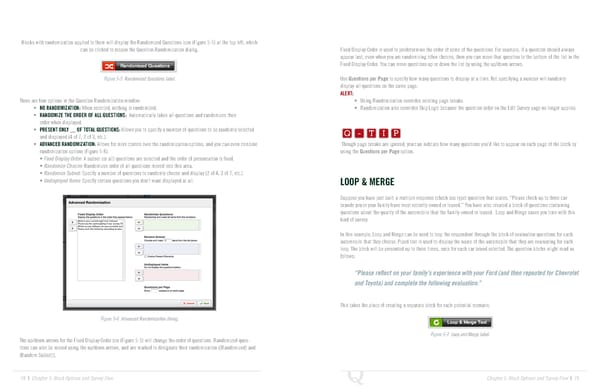
Blocks with randomization applied to them will display the Randomized Questions icon (Figure 5-5) at the top left, which can be clicked to reopen the Question Randomization dialog. Fixed Display Order is used to predetermine the order of some of the questions. For example, if a question should always appear last, even when you are randomizing other choices, then you can move that question to the bottom of the list in the Fixed Display Order. You can move questions up or down the list by using the up/down arrows. Figure 5-5 Randomized Questions label. Use Questions per Page to specify how many questions to display at a time. Not specifying a number will randomly display all questions on the same page. ALERT: There are four options in the Question Randomization window: • Using Randomization overrides existing page breaks. Q-TIP -TIP • NO RANDOMIZATION: When selected, nothing is randomized. • Randomization also overrides Skip Logic because the question order on the Edit Survey page no longer applies. • RANDOMIZE THE ORDER OF ALL QUESTIONS: Automatically takes all questions and randomizes their Q - T I P order when displayed. • PRESENT ONLY __ OF TOTAL QUESTIONS: Allows you to specify a number of questions to be randomly selected Q - T I P and displayed (4 of 7, 2 of 3, etc.). • ADVANCED RANDOMIZATION: Allows for more control over the randomization options, and you can even combine Though page breaks are ignored, you can indicate how many questions you’d like to appear on each page of the block by - T I P randomization options (Figure 5-6). using the Questions per Page option. • Fixed Display Order: A subset (or all) questions are selected and the order of presentation is fixed. • Randomize Choices: Randomizes order of all questions moved into this area. • Randomize Subset: Specify a number of questions to randomly choose and display (2 of 4, 3 of 7, etc.) • Undisplayed Items: Specify certain questions you don’t want displayed at all. LOOP & MERGE Suppose you have just built a multiple response (check box type) question that states, “Please check up to three car brands you or your family have most recently owned or leased.” You have also created a block of questions containing questions about the quality of the automobile that the family owned or leased. Loop and Merge saves you time with this kind of survey. In this example, Loop and Merge can be used to loop the respondent through the block of evaluation questions for each automobile that they choose. Piped text is used to display the name of the automobile that they are evaluating for each loop. The block will be presented up to three times, once for each car brand selected. The question blocks might read as follows: “Please reflect on your family’s experience with your Ford (and then repeated for Chevrolet and Toyota) and complete the following evaluation:” This takes the place of creating a separate block for each potential scenario. Figure 5-6 Advanced Randomization dialog. Figure 5-7 Loop and Merge label. The up/down arrows for the Fixed Display Order box (Figure 5-5) will change the order of questions. Randomized ques- tions can also be moved using the up/down arrows, and are marked to designate their randomization ({Randomized} and {Random Subset}). 78 | Chapter 5: Block Options and Survey Flow Chapter 5: Block Options and Survey Flow | 79
 The Complete Research Suite Page 39 Page 41