
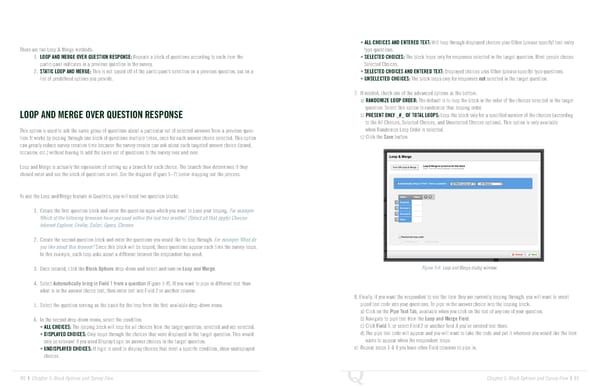
• ALL CHOICES AND ENTERED TEXT: Will loop through displayed choices plus Other (please specify) text-entry There are two Loop & Merge methods: type questions. 1. LOOP AND MERGE OVER QUESTION RESPONSE: Repeats a block of questions according to each item the • SELECTED CHOICES: The block loops only for responses selected in the target question. Most people choose participant indicates in a previous question in the survey. Selected Choices. 2. STATIC LOOP AND MERGE: This is not based off of the participant’s selection on a previous question, but on a • SELECTED CHOICES AND ENTERED TEXT: Displayed choices plus Other (please specify) type questions. list of predefined options you provide. • UNSELECTED CHOICES: The block loops only for responses not selected in the target question. 7. If needed, check one of the advanced options at the bottom. a) RANDOMIZE LOOP ORDER: The default is to loop the block in the order of the choices selected in the target question. Select this option to randomize that looping order. LOOP AND MERGE OVER QUESTION RESPONSE b) PRESENT ONLY _#_ OF TOTAL LOOPS: Loop the block only for a specified number of the choices (according to the All Choices, Selected Choices, and Unselected Choices options). This option is only available This option is used to ask the same group of questions about a particular set of selected answers from a previous ques- when Randomize Loop Order is selected. tion. It works by looping through one block of questions multiple times, once for each answer choice selected. This option c) Click the Save button. can greatly reduce survey creation time because the survey creator can ask about each targeted answer choice (brand, occasion, etc.) without having to add the same set of questions to the survey over and over. Loop and Merge is actually the equivalent of setting up a branch for each choice. The branch then determines if they should enter and see the block of questions or not. See the diagram (Figure 5–7) below mapping out the process. To use the Loop and Merge feature in Qualtrics, you will need two question blocks. 1. Create the first question block and enter the question upon which you want to base your looping. For example: Which of the following browsers have you used within the last two months? (Select all that apply) Choices: Internet Explorer, Firefox, Safari, Opera, Chrome. 2. Create the second question block and enter the questions you would like to loop through. For example: What do you like about this browser? Since this block will be looped, these questions appear each time the survey loops. In this example, each loop asks about a different browser the respondent has used. 3. Once created, click the Block Options drop-down and select and turn on Loop and Merge. Figure 5-8 Loop and Merge dialog window. 4. Select Automatically bring in Field 1 from a question (Figure 5-8). If you want to pipe in different text than what is in the answer choice text, then enter text into Field 2 or another column. 8. Finally, if you want the respondent to see the item they are currently looping through, you will want to insert 5. Select the question serving as the basis for the loop from the first available drop-down menu. piped text code into your questions. To pipe in the answer choice into the looping block: a) Click on the Pipe Text Tab, available when you click on the text of any one of your question. 6. In the second drop-down menu, select the condition. b) Navigate to pipe text from the Loop and Merge Field. • ALL CHOICES: The looping block will loop for all choices from the target question, selected and not selected. c) Click Field 1, or select Field 2 or another field if you’ve entered text there. • DISPLAYED CHOICES: Only loops through the choices that were displayed in the target question. This would d) The pipe text code will appear and you will want to take the code and put it wherever you would like the item only be relevant if you used Display Logic on answer choices in the target question. name to appear when the respondent loops. • UNDISPLAYED CHOICES: If logic is used to display choices that meet a specific condition, show undisplayed e) Repeat steps 1-4 if you have other Field columns to pipe in. choices. 80 | Chapter 5: Block Options and Survey Flow Chapter 5: Block Options and Survey Flow | 81
 The Complete Research Suite Page 40 Page 42