
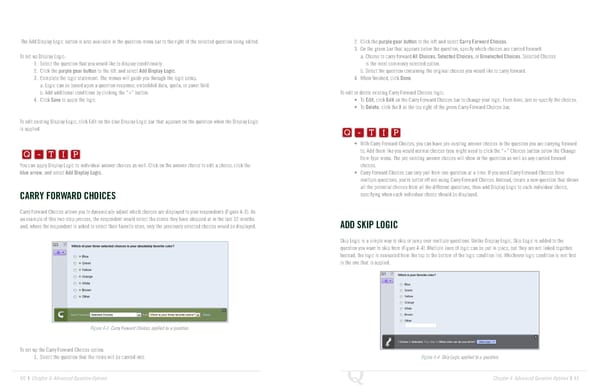
The Add Display Logic button is also available in the question menu bar to the right of the selected question being edited. 2. Click the purple gear button to the left and select Carry Forward Choices. 3. On the green bar that appears below the question, specify which choices are carried forward: To set up Display Logic: a. Choose to carry forward All Choices, Selected Choices, or Unselected Choices. Selected Choices 1. Select the question that you would like to display conditionally. is the most commonly selected option. 2. Click the purple gear button to the left and select Add Display Logic. b. Select the question containing the original choices you would like to carry forward. 3. Complete the logic statement. The menus will guide you through the logic setup. 4. When finished, click Done. a. Logic can be based upon a question response, embedded data, quota, or panel field. b. Add additional conditions by clicking the “+” button. To edit or delete existing Carry Forward Choices logic: 4. Click Save to apply the logic. • To Edit, click Edit on the Carry Forward Choices bar to change your logic. From here, just re-specify the choices. Q-TIP -TIP • To Delete, click the X at the top right of the green Carry Forward Choices bar. To edit existing Display Logic, click Edit on the blue Display Logic bar that appears on the question when the Display Logic Q - T I P Q-TIP -TIP is applied. Q - T I P Q - T I P • With Carry Forward Choices, you can have pre-existing answer choices in the question you are carrying forward - T I P Q - T I P to. Add them like you would normal choices (you might need to click the “+” Choices button below the Change Item Type menu. The pre-existing answer choices will show in the question as well as any carried forward You can apply Display Logic to individual answer choices as well. Click on the answer choice to edit a choice, click the choices. - T I P blue arrow, and select Add Display Logic. • Carry Forward Choices can only pull from one question at a time. If you need Carry Forward Choices from multiple questions, you’re better off not using Carry Forward Choices. Instead, create a new question that shows all the potential choices from all the different questions, then add Display Logic to each individual choice, CARRY FORWARD CHOICES specifying when each individual choice should be displayed. Carry Forward Choices allows you to dynamically adjust which choices are displayed to your respondents (Figure 4-3). As an example of this two-step process, the respondent would select the stores they have shopped at in the last 12 months and, where the respondent is asked to select their favorite store, only the previously selected choices would be displayed. ADD SKIP LOGIC Skip Logic is a simple way to skip or jump over multiple questions. Unlike Display Logic, Skip Logic is added to the question you want to skip from (Figure 4-4). Multiple lines of logic can be put in place, but they are not linked together. Instead, the logic is evaluated from the top to the bottom of the logic condition list. Whichever logic condition is met first is the one that is applied. Figure 4-3 Carry Forward Choices applied to a question. To set up the Carry Forward Choices option: 1. Select the question that the items will be carried into. Figure 4-4 Skip Logic applied to a question. 60 | Chapter 4: Advanced Question Options Chapter 4: Advanced Question Options | 61
 The Complete Research Suite Page 30 Page 32