
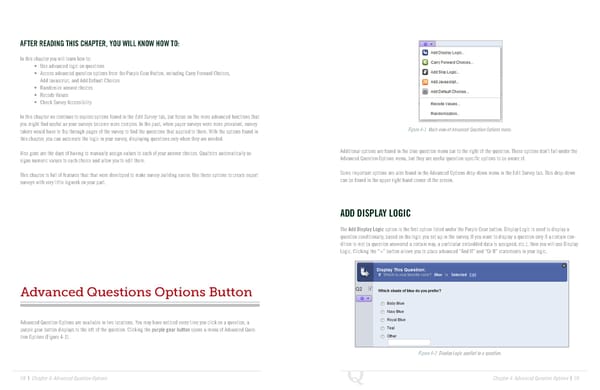
AFTER READING THIS CHAPTER, YOU WILL KNOW HOW TO: In this chapter you will learn how to: • Use advanced logic on questions • Access advanced question options from the Purple Gear Button, including Carry Forward Choices, Add Javascript, and Add Default Choices • Randomize answer choices • Recode Values • Check Survey Accessibility In this chapter we continue to explore options found in the Edit Survey tab, but focus on the more advanced functions that you might find useful as your surveys become more complex. In the past, when paper surveys were more prevalent, survey takers would have to flip through pages of the survey to find the questions that applied to them. With the options found in Figure 4-1 Main view of Advanced Question Options menu. this chapter, you can automate the logic in your survey, displaying questions only when they are needed. Also gone are the days of having to manually assign values to each of your answer choices. Qualtrics automatically as- Additional options are found in the blue question menu bar to the right of the question. These options don’t fall under the signs numeric values to each choice and allow you to edit them. Advanced Question Options menu, but they are useful question-specific options to be aware of. This chapter is full of features that that were developed to make survey building easier. Use these options to create expert Some important options are also found in the Advanced Options drop-down menu in the Edit Survey tab. This drop-down surveys with very little legwork on your part. can be found in the upper right hand corner of the screen. ADD DISPLAY LOGIC The Add Display Logic option is the first option listed under the Purple Gear button. Display Logic is used to display a question conditionally, based on the logic you set up in the survey. If you want to display a question only if a certain con- dition is met (a question answered a certain way, a particular embedded data is assigned, etc.), then you will use Display Logic. Clicking the “+” button allows you to place advanced “And If” and “Or If” statements in your logic. Advanced Questions Options Button Advanced Question Options are available in two locations. You may have noticed every time you click on a question, a purple gear button displays to the left of the question. Clicking the purple gear button opens a menu of Advanced Ques- tion Options (Figure 4-1). Figure 4-2 Display Logic applied to a question. 58 | Chapter 4: Advanced Question Options Chapter 4: Advanced Question Options | 59
 The Complete Research Suite Page 29 Page 31