
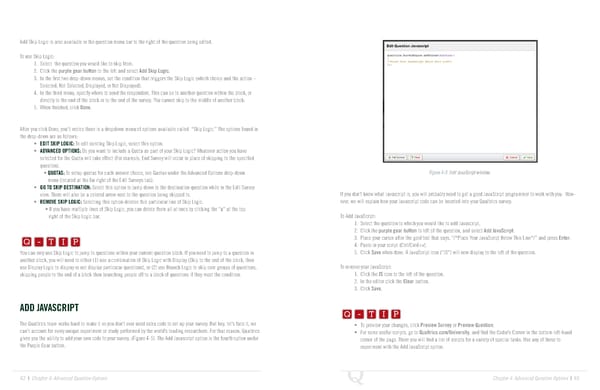
Add Skip Logic is also available in the question menu bar to the right of the question being edited. To use Skip Logic: 1. Select the question you would like to skip from. 2. Click the purple gear button to the left and select Add Skip Logic. 3. In the first two drop-down menus, set the condition that triggers the Skip Logic (which choice and the action – Selected, Not Selected, Displayed, or Not Displayed). 4. In the third menu, specify where to send the respondent. This can be to another question within the block, or directly to the end of the block or to the end of the survey. You cannot skip to the middle of another block. 5. When finished, click Done. After you click Done, you’ll notice there is a dropdown menu of options available called “Skip Logic.” The options found in the drop-down are as follows: • EDIT SKIP LOGIC: To edit existing Skip Logic, select this option. • ADVANCED OPTIONS: Do you want to include a Quota as part of your Skip Logic? Whatever action you have selected for the Quota will take effect (For example, End Survey will occur in place of skipping to the specified question). • QUOTAS: To setup quotas for each answer choice, see Quotas under the Advanced Options drop-down Figure 4-5 Add JavaScript window. menu (located at the far right of the Edit Surveys tab). • GO TO SKIP DESTINATION: Select this option to jump down to the destination question while in the Edit Survey view. There will also be a colored arrow next to the question being skipped to. If you don’t know what Javascript is, you will probably need to get a good JavaScript programmer to work with you. How- • REMOVE SKIP LOGIC: Selecting this option deletes this particular line of Skip Logic. ever, we will explain how your Javascript code can be inserted into your Qualtrics survey. • If you have multiple lines of Skip Logic, you can delete them all at once by clicking the “x” at the top Q-TIP -TIP To Add JavaScript: right of the Skip Logic bar. Q - T 1. Select the question to which you would like to add Javascript. I P 2. Click the purple gear button to left of the question, and select Add JavaScript. Q - T I P 3. Place your cursor after the gold text that says, “/*Place Your JavaScript Below This Line*/” and press Enter. 4. Paste in your script (Ctrl/Cmd+v). You can only use Skip Logic to jump to questions within your current question block. If you need to jump to a question in 5. Click Save when done. A JavaScript icon (“JS”) will now display to the left of the question. - T I P another block, you will need to either (1) use a combination of Skip Logic with Display (Skip to the end of the block, then use Display Logic to display or not display particular questions), or (2) use Branch Logic to skip over groups of questions, To remove your JavaScript: skipping people to the end of a block then branching people off to a block of questions if they meet the condition. 1. Click the JS icon to the left of the question. 2. In the editor click the Clear button. Q-TIP -TIP 3. Click Save. ADD JAVASCRIPT Q - T I P Q - T I P The Qualtrics team works hard to make it so you don’t ever need extra code to set up your survey. But hey, let’s face it, we • To preview your changes, click Preview Survey or Preview Question. can’t account for every unique experiment or study performed by the world’s leading researchers. For that reason, Qualtrics - T I P • For some useful scripts, go to Qualtrics.com/University, and find the Coder’s Corner in the bottom left-hand gives you the ability to add your own code to your survey. (Figure 4-5). The Add Javascript option is the fourth option under corner of the page. There you will find a list of scripts for a variety of special tasks. Use any of these to the Purple Gear button. experiment with the Add JavaScript option. 62 | Chapter 4: Advanced Question Options Chapter 4: Advanced Question Options | 63
 The Complete Research Suite Page 31 Page 33