
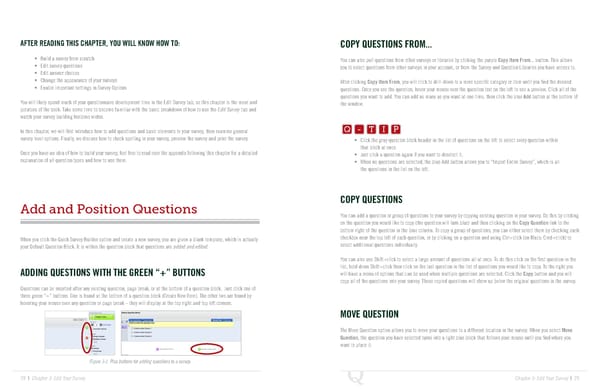
AFTER READING THIS CHAPTER, YOU WILL KNOW HOW TO: COPY QUESTIONS FROM... • Build a survey from scratch You can also pull questions from other surveys or libraries by clicking the purple Copy Item From... button. This allows • Edit survey questions you to select questions from other surveys in your account, or from the Survey and Question Libraries you have access to. • Edit answer choices • Change the appearance of your surveys After clicking Copy Item From, you will click to drill-down to a more specific category or item until you find the desired • Enable important settings in Survey Options questions. Once you see the question, hover your mouse over the question text on the left to see a preview. Click all of the questions you want to add. You can add as many as you want at one time, then click the blue Add button at the bottom of You will likely spend much of your questionnaire development time in the Edit Survey tab, so this chapter is the meat and Q-TIP -TIP the window. potatoes of the book. Take some time to become familiar with the basic breakdown of how to use the Edit Survey tab and watch your survey building horizons widen. Q - T I P In this chapter, we will first introduce how to add questions and basic elements to your survey, then examine general Q - T I P survey level options. Finally, we discuss how to check spelling in your survey, preview the survey and print the survey. • Click the gray question block header in the list of questions on the left to select every question within - T I P that block at once. Once you have an idea of how to build your survey, feel free to read over the appendix following this chapter for a detailed • Just click a question again if you want to deselect it. explanation of all question types and how to use them. • When no questions are selected, the blue Add button allows you to “Import Entire Survey”, which is all the questions in the list on the left. Add and Position Questions COPY QUESTIONS You can add a question or group of questions to your survey by copying existing question in your survey. Do this by clicking on the question you would like to copy (the question will turn blue) and then clicking on the Copy Question link to the bottom right of the question in the blue column. To copy a group of questions, you can either select them by checking each When you click the Quick Survey Builder option and create a new survey, you are given a blank template, which is actually checkbox near the top left of each question, or by clicking on a question and using Ctrl+click (on Macs: Cmd+click) to your Default Question Block. It is within the question block that questions are added and edited. select additional questions individually. You can also use Shift+click to select a large amount of questions all at once. To do this click on the first question in the list, hold down Shift+click then click on the last question in the list of questions you would like to copy. To the right you ADDING QUESTIONS WITH THE GREEN “+” BUTTONS will have a menu of options that can be used when multiple questions are selected. Click the Copy button and you will copy all of the questions into your survey. These copied questions will show up below the original questions in the survey. Questions can be inserted after any existing question, page break, or at the bottom of a question block. Just click one of three green “+” buttons. One is found at the bottom of a question block (Create New Item). The other two are found by hovering your mouse over any question or page break – they will display at the top right and top left corners. MOVE QUESTION The Move Question option allows you to move your questions to a different location in the survey. When you select Move Question, the question you have selected turns into a light blue block that follows your mouse until you find where you want to place it. Figure 3-1 Plus buttons for adding questions to a survey. 28 | Chapter 3: Edit Your Survey Chapter 3: Edit Your Survey | 29
 The Complete Research Suite Page 14 Page 16