
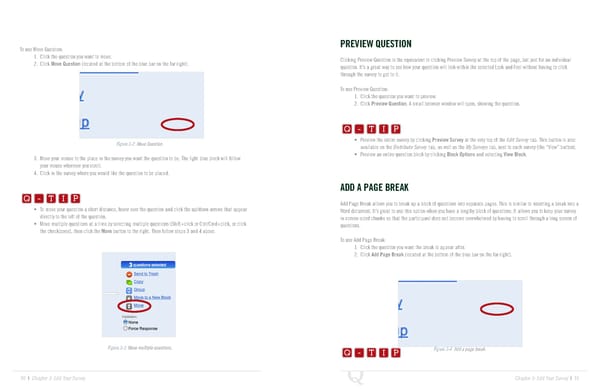
To use Move Question: PREVIEW QUESTION 1. Click the question you want to move. Clicking Preview Question is the equivalent to clicking Preview Survey at the top of the page, but just for an individual 2. Click Move Question (located at the bottom of the blue bar on the far right). question. It’s a great way to see how your question will look within the selected Look and Feel without having to click through the survey to get to it. To use Preview Question: 1. Click the question you want to preview. Q-TIP -TIP 2. Click Preview Question. A small browser window will open, showing the question. Q - T I P Q - T I P • Preview the entire survey by clicking Preview Survey at the very top of the Edit Survey tab. This button is also Figure 3-2 Move Question. - T I P available on the Distribute Survey tab, as well as the My Surveys tab, next to each survey (the “View” button). 3. Move your mouse to the place in the survey you want the question to be. The light blue block will follow • Preview an entire question block by clicking Block Options and selecting View Block. your mouse wherever you scroll. Q-TIP -TIP 4. Click in the survey where you would like the question to be placed. Q - T I P ADD A PAGE BREAK Q - T I P Add Page Break allows you to break up a block of questions into separate pages. This is similar to inserting a break into a • To move your question a short distance, hover over the question and click the up/down arrows that appear Word document. It’s great to use this option when you have a lengthy block of questions. It allows you to keep your survey - T I P directly to the left of the question. in screen-sized chunks so that the participant does not become overwhelmed by having to scroll through a long screen of • Move multiple questions at a time by selecting multiple questions (Shift+click or Ctrl/Cmd+click, or click questions. the checkboxes), then click the Move button to the right. Then follow steps 3 and 4 above. To use Add Page Break: 1. Click the question you want the break to appear after. 2. Click Add Page Break (located at the bottom of the blue bar on the far right). \ Q-TIP -TIP Q - T I P Figure 3-3 Move multiple questions. Q - T I P Figure 3-4 Add a page break. - T I P 30 | Chapter 3: Edit Your Survey Chapter 3: Edit Your Survey | 31
 The Complete Research Suite Page 15 Page 17