
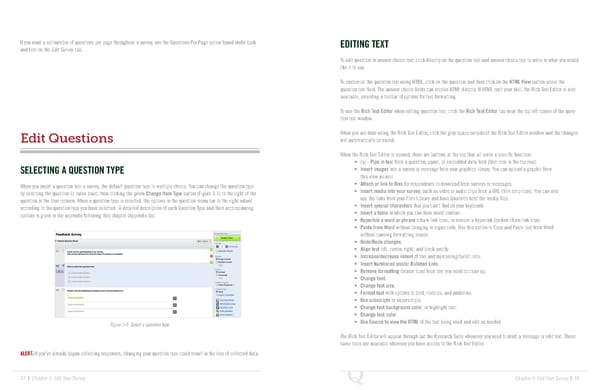
If you want a set number of questions per page throughout a survey, use the Questions Per Page option found under Look EDITING TEXT and Feel on the Edit Survey tab. To edit question or answer choice text, click directly on the question text and answer choice text to write in what you would like it to say. To customize the question text using HTML, click on the question and then click on the HTML View button above the question text field. The answer choice fields can receive HTML directly. If HTML isn’t your skill, the Rich Text Editor is also available, providing a toolbar of options for text formatting. To use the Rich Text Editor when editing question text, click the Rich Text Editor tab near the top left corner of the ques- tion text window. When you are done using the Rich Text Editor, click the gray space outside of the Rich Text Editor window and the changes Edit Questions will automatically be saved. When the Rich Text Editor is opened, there are buttons at the top that all serve a specific function: • {a} - Pipe in text from a question, panel, or embedded data field (first icon in the top row). SELECTING A QUESTION TYPE • Insert images into a survey or message from your graphics library. You can upload a graphic from this view as well. When you insert a question into a survey, the default question type is multiple choice. You can change the question type • Attach or link to files for respondents to download from surveys or messages. by selecting the question (it turns blue), then clicking the green Change Item Type button (Figure 3-5) to the right of the • Insert media into your survey, such as video or audio clips from a URL (film strip icon). You can also question in the blue column. When a question type is selected, the options in the question menu bar to the right adjust use the links from your Files Library and have Qualtrics host the media files. according to the question type you have selected. A detailed description of each Question Type and their accompanying • Insert special characters that you can’t find on your keyboard. options is given in the appendix following this chapter (Appendix 3a). • Insert a table in which you can then insert content. • Hyperlink a word or phrase (chain link icon), or remove a hyperlink (broken chain link icon). • Paste from Word without bringing in rogue code. Use this option to Copy and Paste text from Word without causing formatting issues. • Undo/Redo changes. • Align text left, center, right, and block justify. • Increase/decrease indent of text and numbering/bullet lists. • Insert Numbered and/or Bulleted Lists. • Remove formatting (eraser icon) from text you need to clean up. • Change font. • Change text size. • Format text with options to bold, italicize, and underline. • Use subscripts or superscripts. • Change text background color, or highlight text. • Change text color. Figure 3-5 Select a question type. • Use Source to view the HTML of the text being used and edit as needed The Rich Text Editor will appear through out the Research Suite whenever you need to draft a message or edit text. These same tools are available wherever you have access to the Rich Text Editor. ALERT: If you’ve already begun collecting responses, changing your question type could result in the loss of collected data. 32 | Chapter 3: Edit Your Survey Chapter 3: Edit Your Survey | 33
 The Complete Research Suite Page 16 Page 18