
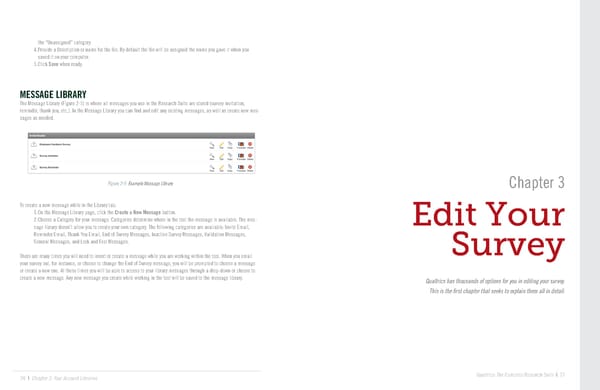
the “Unassigned” category. 4. Provide a Description or name for the file. By default the file will be assigned the name you gave it when you saved it on your computer. 5. Click Save when ready. MESSAGE LIBRARY The Message Library (Figure 2-5) is where all messages you use in the Research Suite are stored (survey invitation, reminder, thank you, etc.). In the Message Library you can find and edit any existing messages, as well as create new mes- sages as needed. Figure 2-5 Example Message Library Chapter 3 To create a new message while in the Library tab: 1. On the Message Library page, click the Create a New Message button. 2. Choose a Category for your message. Categories determine where in the tool the message is available. The mes- Edit Your sage library doesn’t allow you to create your own category. The following categories are available: Invite Email, Reminder Email, Thank You Email, End of Survey Messages, Inactive Survey Messages, Validation Messages, General Messages, and Look and Feel Messages. Survey There are many times you will need to insert or create a message while you are working within the tool. When you email your survey out, for instance, or choose to change the End of Survey message, you will be prompted to choose a message or create a new one. At these times you will be able to access to your library messages through a drop-down or choose to create a new message. Any new message you create while working in the tool will be saved to the message library. Qualtrics has thousands of options for you in editing your survey. This is the first chapter that seeks to explain them all in detail. 26 | Chapter 2: Your Account Libraries Qualtrics: The Complete Research Suite | 27
 The Complete Research Suite Page 13 Page 15