
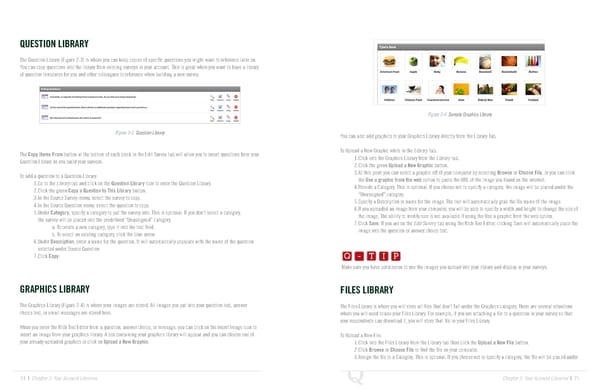
QUESTION LIBRARY The Question Library (Figure 2-3) is where you can keep copies of specific questions you might want to reference later on. You can copy questions into the library from existing surveys in your account. This is great when you want to have a library of question templates for you and other colleagues to reference when building a new survey. Figure 2-4 Sample Graphics Library Figure 2-3 Question Library You can also add graphics to your Graphics Library directly from the Library Tab. The Copy Items From button at the bottom of each block in the Edit Survey tab will allow you to insert questions from your To Upload a New Graphic while in the Library tab: Question Library as you build your surveys. 1. Click into the Graphics Library from the Library tab. 2. Click the green Upload a New Graphic button. To add a question to a Question Library: 3. At this point you can select a graphic off of your computer by selecting Browse or Choose File, or you can click 1. Go to the Library tab and click on the Question Library icon to enter the Question Library. the Use a graphic from the web option to paste the URL of the image you found on the internet. 2. Click the green Copy a Question to This Library button. 4. Provide a Category. This is optional. If you choose not to specify a category, the image will be placed under the 3. In the Source Survey menu, select the survey to copy. “Unassigned” category. 4. In the Source Question menu, select the question to copy. 5. Specify a Description or name for the image. The tool will automatically grab the file name of the image. 5. Under Category, specify a category to put the survey into. This is optional. If you don’t select a category, 6. If you uploaded an image from your computer, you will be able to specify a width and height to change the size of the survey will be placed into the predefined “Unassigned” category. the image. The ability to modify size is not available if using the Use a graphic from the web option. 7. Click Save. If you are on the Edit Survey tab using the Rich Text Editor, clicking Save will automatically place the a. To create a new category, type it into the text field. Q-TIP -TIP b. To select an existing category, click the blue arrow. image into the question or answer choice text. 6. Under Description, enter a name for the question. It will automatically populate with the name of the question Q - T I P selected under Source Question. 7. Click Copy. Q - T I P Make sure you have permission to use the images you upload into your library and display in your surveys. - T I P GRAPHICS LIBRARY FILES LIBRARY The Graphics Library (Figure 2-4) is where your images are stored. All images you put into your question text, answer The Files Library is where you will store all files that don’t fall under the Graphics category. There are several situations choice text, or email messages are stored here. where you will need to use your Files Library. For example, if you are attaching a file to a question in your survey so that your respondents can download it, you will store that file in your Files Library. When you enter the Rich Text Editor from a question, answer choice, or message, you can click on the Insert Image icon to insert an image from your graphics library. A box containing your graphics library will appear and you can choose one of To Upload a New File: your already uploaded graphics or click on Upload a New Graphic. 1. Click into the Files Library from the Library tab then click the Upload a New File button. 2. Click Browse or Choose File to find the file on your computer. 3. Assign the file to a Category. This is optional. If you choose not to specify a category, the file will be placed under 24 | Chapter 2: Your Account Libraries Chapter 2: Your Account Libraries | 25
 The Complete Research Suite Page 12 Page 14