
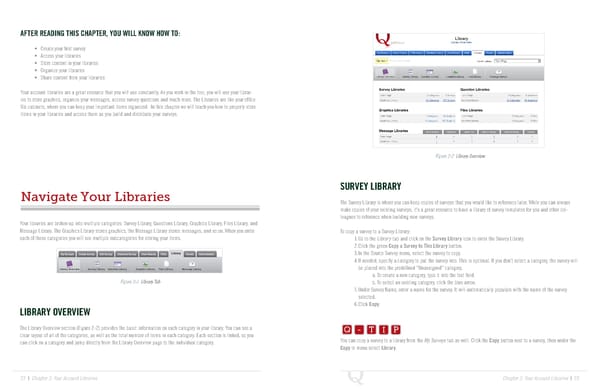
AFTER READING THIS CHAPTER, YOU WILL KNOW HOW TO: • Create your first survey • Access your libraries • Store content in your libraries • Organize your libraries • Share content from your libraries Your account libraries are a great resource that you will use constantly. As you work in the tool, you will use your librar- ies to store graphics, organize your messages, access survey questions and much more. The Libraries are like your office file cabinets, where you can keep your important items organized. In this chapter we will teach you how to properly store items in your libraries and access them as you build and distribute your surveys. Figure 2-2 Library Overview SURVEY LIBRARY Navigate Your Libraries The Survey Library is where you can keep copies of surveys that you would like to reference later. While you can always make copies of your existing surveys, it’s a great resource to have a library of survey templates for you and other col- leagues to reference when building new surveys. Your libraries are broken up into multiple categories: Survey Library, Questions Library, Graphics Library, Files Library, and Message Library. The Graphics Library stores graphics, the Message Library stores messages, and so on. When you enter To copy a survey to a Survey Library: each of these categories you will see multiple subcategories for storing your items. 1. Go to the Library tab and click on the Survey Library icon to enter the Survey Library. 2. Click the green Copy a Survey to This Library button. 3. In the Source Survey menu, select the survey to copy. 4. If needed, specify a category to put the survey into. This is optional. If you don’t select a category, the survey will be placed into the predefined “Unassigned” category. a. To create a new category, type it into the text field. Figure 2-1 Library Tab b. To select an existing category, click the blue arrow. 5. Under Survey Name, enter a name for the survey. It will automatically populate with the name of the survey selected. Q-TIP -TIP LIBRARY OVERVIEW 6. Click Copy. Q - T I P The Library Overview section (Figure 2-2) provides the basic information on each category in your library. You can see a Q - T I P clear layout of all of the categories, as well as the total number of items in each category. Each section is linked, so you can click on a category and jump directly from the Library Overview page to the individual category. You can copy a survey to a library from the My Surveys tab as well. Click the Copy button next to a survey, then under the - T I P Copy to menu select Library. 22 | Chapter 2: Your Account Libraries Chapter 2: Your Account Libraries | 23
 The Complete Research Suite Page 11 Page 13