
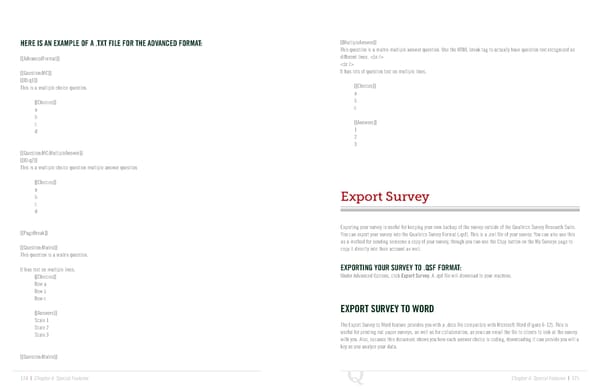
HERE IS AN EXAMPLE OF A .TXT FILE FOR THE ADVANCED FORMAT: [[MultipleAnswer]] This question is a matrix multiple answer question. Use the HTML break tag to actually have question text recognized as [[AdvancedFormat]] different lines. [[Question:MC]] It has lots of question text on multiple lines. [[ID:q1]] This is a multiple choice question. [[Choices]] a [[Choices]] b a c b c [[Answers]] d 1 2 3 [[Question:MC:MultipleAnswer]] [[ID:q2]] This is a multiple choice question multiple answer question. [[Choices]] a b Export Survey c d Exporting your survey is useful for keeping your own backup of the survey outside of the Qualtrics Survey Research Suite. [[PageBreak]] You can export your survey into the Qualtrics Survey Format (.qsf). This is a .xml file of your survey. You can also use this as a method for sending someone a copy of your survey, though you can use the Copy button on the My Surveys page to [[Question:Matrix]] copy it directly into their account as well. This question is a matrix question. It has text on multiple lines. EXPORTING YOUR SURVEY TO .QSF FORMAT: [[Choices]] Under Advanced Options, click Export Survey. A .qsf file will download to your machine. Row a Row b Row c [[Answers]] EXPORT SURVEY TO WORD Scale 1 The Export Survey to Word feature provides you with a .docx file compatible with Microsoft Word (Figure 6-12). This is Scale 2 useful for printing out paper surveys, as well as for collaboration, as you can email the file to clients to look at the survey Scale 3 with you. Also, because this document shows you how each answer choice is coding, downloading it can provide you will a key as you analyze your data. [[Question:Matrix]] 124 | Chapter 6: Special Features Chapter 6: Special Features | 125
 The Complete Research Suite Page 62 Page 64