
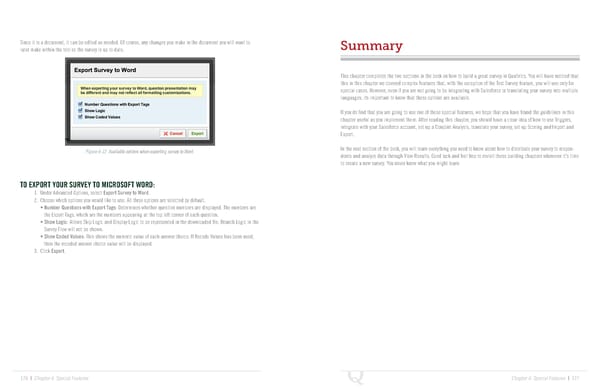
Since it is a document, it can be edited as needed. Of course, any changes you make in the document you will want to Summary later make within the tool so the survey is up to date. This chapter completes the two sections in the book on how to build a great survey in Qualtrics. You will have noticed that this in this chapter we covered complex features that, with the exception of the Test Survey feature, you will use only for special cases. However, even if you are not going to be integrating with Salesforce or translating your survey into multiple languages, its important to know that these options are available. If you do find that you are going to use one of these special features, we hope that you have found the guidelines in this chapter useful as you implement them. After reading this chapter, you should have a clear idea of how to use Triggers, integrate with your Salesforce account, set up a Conjoint Analysis, translate your survey, set up Scoring and Import and Export. Figure 6-12 Available options when exporting survey to Word. In the next section of the book, you will learn everything you need to know about how to distribute your survey to respon- dents and analyze data through View Results. Good luck and feel free to revisit these building chapters whenever it’s time to create a new survey. You never know what you might learn. TO EXPORT YOUR SURVEY TO MICROSOFT WORD: 1. Under Advanced Options, select Export Survey to Word. 2. Choose which options you would like to use. All three options are selected by default. • Number Questions with Export Tags: Determines whether question numbers are displayed. The numbers are the Export Tags, which are the numbers appearing at the top left corner of each question. • Show Logic: Allows Skip Logic and Display Logic to be represented in the downloaded file. Branch Logic in the Survey Flow will not be shown. • Show Coded Values: This shows the numeric value of each answer choice. If Recode Values has been used, then the recoded answer choice value will be displayed. 3. Click Export. 126 | Chapter 6: Special Features Chapter 6: Special Features | 127
 The Complete Research Suite Page 63 Page 65