
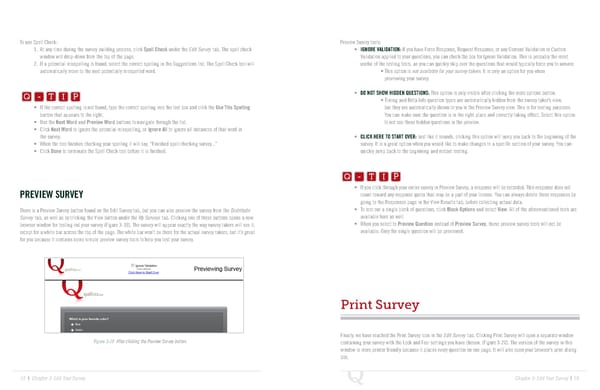
To use Spell Check: Preview Survey tools: 1. At any time during the survey building process, click Spell Check under the Edit Survey tab. The spell check • IGNORE VALIDATION: If you have Force Response, Request Response, or any Content Validation or Custom window will drop-down from the top of the page. Validation applied to your questions, you can check the box for Ignore Validation. This is probably the most 2. If a potential misspelling is found, select the correct spelling in the Suggestions list. The Spell Check tool will useful of the testing tools, as you can quickly skip over the questions that would typically force you to answer. Q-TIP -TIP automatically move to the next potentially misspelled word. • This option is not available for your survey takers. It is only an option for you when Q - T I P previewing your survey. Q - T I P • DO NOT SHOW HIDDEN QUESTIONS: This option is only visible after clicking the more options button. • Timing and Meta Info question types are automatically hidden from the survey taker’s view, • If the correct spelling is not found, type the correct spelling into the text box and click the Use This Spelling but they are automatically shown to you in the Preview Survey view. This is for testing purposes. - T I P button that appears to the right. You can make sure the question is in the right place and correctly taking effect. Select this option • Use the Next Word and Preview Word buttons to navigate through the list. to not see these hidden questions in the preview. • Click Next Word to ignore the potential misspelling, or Ignore All to ignore all instances of that word in the survey. • CLICK HERE TO START OVER: Just like it sounds, clicking this option will jump you back to the beginning of the • When the tool finishes checking your spelling it will say, “Finished spell checking survey...” survey. It is a great option when you would like to make changes to a specific section of your survey. You can Q-TIP -TIP • Click Done to terminate the Spell Check tool before it is finished. quickly jump back to the beginning and restart testing. Q - T I P Q - T I P • If you click through your entire survey in Preview Survey, a response will be recorded. This response does not - T I P PREVIEW SURVEY count toward any response quota that may be a part of your license. You can always delete these responses by going to the Responses page in the View Results tab, before collecting actual data. There is a Preview Survey button found on the Edit Survey tab, but you can also preview the survey from the Distribute • To test out a single block of questions, click Block Options and select View. All of the aforementioned tools are Survey tab, as well as by clicking the View button under the My Surveys tab. Clicking one of these buttons opens a new available here as well. browser window for testing out your survey (Figure 3-19). The survey will appear exactly the way survey takers will see it, • When you select to Preview Question instead of Preview Survey, these preview survey tools will not be except for a white bar across the top of the page. The white bar won’t be there for the actual survey takers, but it’s great available. Only the single question will be previewed. for you because it contains some simple preview survey tools to help you test your survey. Print Survey Finally, we have reached the Print Survey icon in the Edit Survey tab. Clicking Print Survey will open a separate window Figure 3-19 After clicking the Preview Survey button. containing your survey with the Look and Feel settings you have chosen. (Figure 3-20). The version of the survey in this window is more printer friendly because it places every question on one page. It will also open your browser’s print dialog box. 52 | Chapter 3: Edit Your Survey Chapter 3: Edit Your Survey | 53
 The Complete Research Suite Page 26 Page 28