
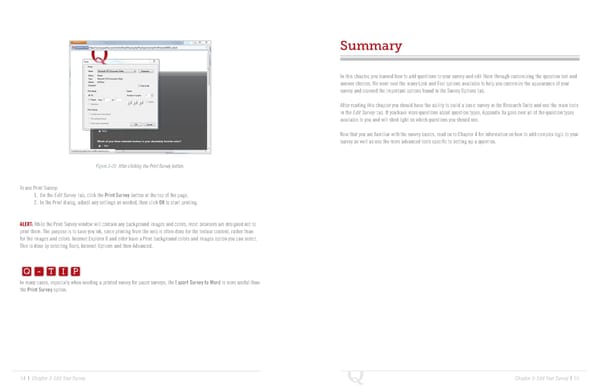
Summary In this chapter, you learned how to add questions to your survey and edit them through customizing the question text and answer choices. We went over the many Look and Feel options available to help you customize the appearance of your survey and covered the important options found in the Survey Options tab. After reading this chapter you should have the ability to build a basic survey in the Research Suite and use the main tools in the Edit Survey tab. If you have more questions about question types, Appendix 3a goes over all of the question types available to you and will shed light on which questions you should use. Now that you are familiar with the survey basics, read on to Chapter 4 for information on how to add complex logic to your survey as well as use the more advanced tools specific to setting up a question. Figure 3-20 After clicking the Print Survey button. To use Print Survey: 1. On the Edit Survey tab, click the Print Survey button at the top of the page. 2. In the Print dialog, adjust any settings as needed, then click OK to start printing. ALERT: While the Print Survey window will contain any background images and colors, most browsers are designed not to print them. The purpose is to save you ink, since printing from the web is often done for the textual content, rather than for the images and colors. Internet Explorer 8 and older have a Print background colors and images option you can select. Q-TIP -TIP This is done by selecting Tools, Internet Options and then Advanced. Q - T I P Q - T I P In many cases, especially when needing a printed survey for paper surveys, the Export Survey to Word is more useful than - T I P the Print Survey option. 54 | Chapter 3: Edit Your Survey Chapter 3: Edit Your Survey | 55
 The Complete Research Suite Page 27 Page 29