
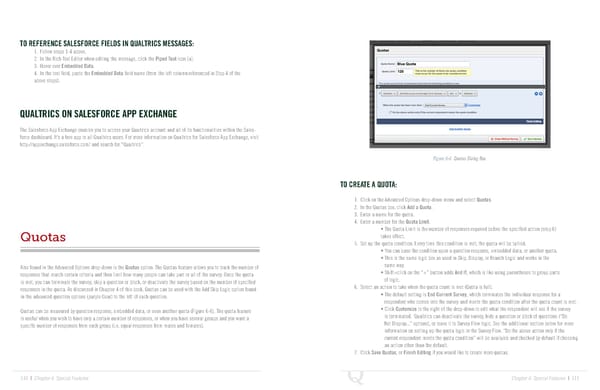
TO REFERENCE SALESFORCE FIELDS IN QUALTRICS MESSAGES: 1. Follow steps 1-4 above. 2. In the Rich Text Editor when editing the message, click the Piped Text icon {a}. 3. Hover over Embedded Data. 4. In the text field, paste the Embedded Data field name (from the left column referenced in Step 4 of the above steps). QUALTRICS ON SALESFORCE APP EXCHANGE The Salesforce App Exchange enables you to access your Qualtrics account and all of its functionalities within the Sales- force dashboard. It’s a free app to all Qualtrics users. For more information on Qualtrics for Salesforce App Exchange, visit http://appexchange.salesforce.com/ and search for “Qualtrics”. Figure 6-6 Quotas Dialog Box. TO CREATE A QUOTA: 1. Click on the Advanced Options drop-down menu and select Quotas. 2. In the Quotas box, click Add a Quota. 3. Enter a name for the quota. 4. Enter a number for the Quota Limit. • The Quota Limit is the number of responses required before the specified action (step 6) Quotas takes effect. 5. Set up the quota condition. Every time this condition is met, the quota will be tallied. • You can base the condition upon a question response, embedded data, or another quota. • This is the same logic box as used in Skip, Display, or Branch Logic and works in the Also found in the Advanced Options drop-down is the Quotas option. The Quotas feature allows you to track the number of same way. responses that match certain criteria and then limit how many people can take part or all of the survey. Once the quota • Shift+click on the “+” button adds And If, which is like using parentheses to group parts is met, you can terminate the survey, skip a question or block, or deactivate the survey based on the number of specified of logic. responses in the quota. As discussed in Chapter 4 of this book, Quotas can be used with the Add Skip Logic option found 6. Select an action to take when the quota count is met (Quota is full). in the advanced question options (purple Gear) to the left of each question. • The default setting is End Current Survey, which terminates the individual response for a respondent who comes into the survey and meets the quota condition after the quota count is met. Quotas can be measured by question response, embedded data, or even another quota (Figure 6-6). The quota feature • Click Customize to the right of the drop-down to edit what the respondent will see if the survey is useful when you wish to have only a certain number of responses, or when you have several groups and you want a is terminated. Qualtrics can deactivate the survey, hide a question or block of questions (“Do specific number of responses from each group (i.e. equal responses from males and females). Not Display...” options), or leave it to Survey Flow logic. See the additional section below for more information on setting up the quota logic in the Survey Flow. “Do the above action only if the current respondent meets the quota condition” will be available and checked by default if choosing an action other than the default. 7. Click Save Quotas, or Finish Editing if you would like to create more quotas. 110 | Chapter 6: Special Features Chapter 6: Special Features | 111
 The Complete Research Suite Page 55 Page 57