
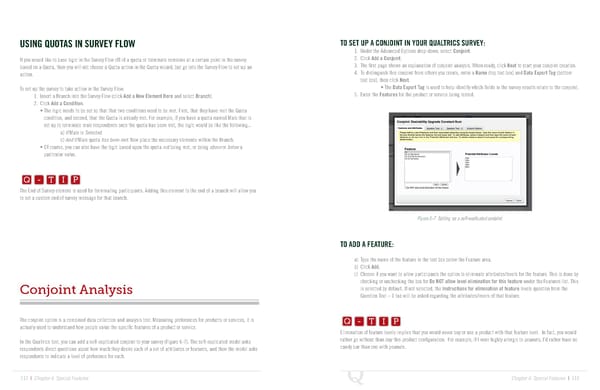
USING QUOTAS IN SURVEY FLOW TO SET UP A CONJOINT IN YOUR QUALTRICS SURVEY: 1. Under the Advanced Options drop-down, select Conjoint. If you would like to base logic in the Survey Flow off of a quota or terminate someone at a certain point in the survey 2. Click Add a Conjoint. based on a Quota, then you will not choose a Quota action in the Quota wizard, but go into the Survey Flow to set up an 3. The first page shows an explanation of conjoint analysis. When ready, click Next to start your conjoint creation. action. 4. To distinguish this conjoint from others you create, enter a Name (top text box) and Data Export Tag (bottom text box), then click Next. To set up the survey to take action in the Survey Flow: • The Data Export Tag is used to help identify which fields in the survey results relate to the conjoint. 1. Insert a Branch into the Survey Flow (click Add a New Element Here and select Branch). 5. Enter the Features for the product or service being tested. 2. Click Add a Condition. • The logic needs to be set so that that two conditions need to be met. First, that they have met the Quota condition, and second, that the Quota is already met. For example, if you have a quota named Male that is set up to terminate male respondents once the quota has been met, the logic would be like the following... a) If Male is Selected. b) And If Male quota has been met. Now place the necessary elements within the Branch. • Of course, you can also have the logic based upon the quota not being met, or being above or below a Q-TIP -TIP particular value. Q - T I P Q - T I P The End of Survey element is used for terminating participants. Adding this element to the end of a branch will allow you - T I P to set a custom end of survey message for that branch. Figure 6-7 Setting up a self-explicated conjoint. TO ADD A FEATURE: a) Type the name of the feature in the text box below the Feature area. b) Click Add. c) Choose if you want to allow participants the option to eliminate attributes/levels for the feature. This is done by checking or unchecking the box for Do NOT allow level elimination for this feature under the Features list. This is selected by default. If not selected, the Instructions for elimination of feature levels question from the Conjoint Analysis Q-TIP -TIP Question Text – 1 tab will be asked regarding the attributes/levels of that feature. Q - T I P The conjoint option is a combined data collection and analysis tool. Measuring preferences for products or services, it is Q - T I P actually used to understand how people value the specific features of a product or service. Elimination of feature levels implies that you would never buy or use a product with that feature level. In fact, you would - T I P In the Qualtrics tool, you can add a self-explicated conjoint to your survey (Figure 6-7). The self-explicated model asks rather go without than buy this product configuration. For example, if I were highly allergic to peanuts, I’d rather have no respondents direct questions about how much they desire each of a set of attributes or features, and then the model asks candy bar than one with peanuts. respondents to indicate a level of preference for each. 112 | Chapter 6: Special Features Chapter 6: Special Features | 113
 The Complete Research Suite Page 56 Page 58