
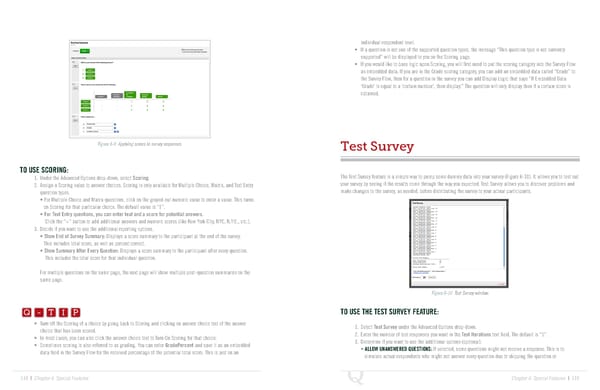
individual respondent level. • If a question is not one of the supported question types, the message “This question type is not currently supported” will be displayed to you on the Scoring page. • If you would like to base logic upon Scoring, you will first need to put the scoring category into the Survey Flow as embedded data. If you are in the Grade scoring category, you can add an embedded data called “Grade” to the Survey Flow, then for a question in the survey you can add Display Logic that says “If Embedded Data ‘Grade’ is equal to a ‘certain number’, then display.” The question will only display then if a certain score is obtained. Figure 6-9 Applying scores to survey responses. Test Survey TO USE SCORING: 1. Under the Advanced Options drop-down, select Scoring. The Test Survey feature is a simple way to pump some dummy data into your survey (Figure 6-10). It allows you to test out 2. Assign a Scoring value to answer choices. Scoring is only available for Multiple Choice, Matrix, and Text Entry your survey by seeing if the results come through the way you expected. Test Survey allows you to discover problems and question types. make changes to the survey, as needed, before distributing the survey to your actual participants. • For Multiple Choice and Matrix questions, click on the grayed-out numeric value to enter a value. This turns on Scoring for that particular choice. The default value is “1”. • For Text Entry questions, you can enter text and a score for potential answers. Click the “+” button to add additional answers and numeric scores (like New York City, NYC, N.Y.C., etc.). 3. Decide if you want to use the additional reporting options. • Show End of Survey Summary: Displays a score summary to the participant at the end of the survey. This includes total score, as well as percent correct. • Show Summary After Every Question: Displays a score summary to the participant after every question. This includes the total score for that individual question. For multiple questions on the same page, the next page will show multiple post-question summaries on the same page. Q-TIP -TIP Figure 6-10 Test Survey window. Q - T I P Q - T I P TO USE THE TEST SURVEY FEATURE: • Turn off the Scoring of a choice by going back to Scoring and clicking on answer choice text of the answer 1. Select Test Survey under the Advanced Options drop-down. - T I P choice that has been scored. 2. Enter the number of test responses you want in the Test Iterations text field. The default is “5”. • In most cases, you can also click the answer choice text to Turn On Scoring for that choice. 3. Determine if you want to use the additional options (optional). • Sometimes scoring is also referred to as grading. You can enter GradePercent and save it as an embedded • ALLOW UNANSWERED QUESTIONS: If selected, some questions might not receive a response. This is to data field in the Survey Flow for the received percentage of the potential total score. This is just on an simulate actual respondents who might not answer every question due to skipping the question or 118 | Chapter 6: Special Features Chapter 6: Special Features | 119
 The Complete Research Suite Page 59 Page 61