
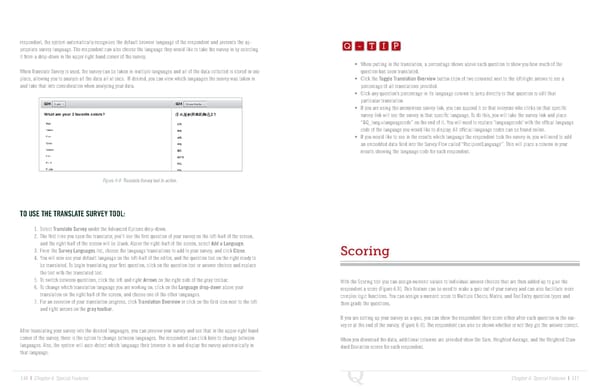
Q-TIP -TIP Q - T I P respondent, the system automatically recognizes the default browser language of the respondent and presents the ap- Q - T I P propriate survey language. The respondent can also choose the language they would like to take the survey in by selecting it from a drop-down in the upper right hand corner of the survey. - T I P • When putting in the translation, a percentage shows above each question to show you how much of the When Translate Survey is used, the survey can be taken in multiple languages and all of the data collected is stored in one question has been translated. place, allowing you to analyze all the data all at once. If desired, you can view which languages the survey was taken in • Click the Toggle Translation Overview button (icon of two columns) next to the left/right arrows to see a and take that into consideration when analyzing your data. percentage of all translations provided. • Click any question’s percentage in its language column to jump directly to that question to edit that particular translation. • If you are using the anonymous survey link, you can append it so that everyone who clicks on that specific survey link will see the survey in that specific language. To do this, you will take the survey link and place “&Q_lang=languagecode” on the end of it. You will need to replace ‘languagecode’ with the offical language code of the language you would like to display. All official language codes can be found online. • If you would like to see in the results which language the respondent took the survey in, you will need to add an embedded data field into the Survey Flow called “RecipientLanguage”. This will place a column in your results showing the language code for each respondent. Figure 6-8 Translate Survey tool in action. TO USE THE TRANSLATE SURVEY TOOL: 1. Select Translate Survey under the Advanced Options drop-down. 2. The first time you open the translator, you’ll see the first question of your survey on the left-half of the screen, and the right-half of the screen will be blank. Above the right-half of the screen, select Add a Language. 3. From the Survey Languages list, choose the language translations to add to your survey, and click Close. Scoring 4. You will now see your default language on the left-half of the editor, and the question text on the right ready to be translated. To begin translating your first question, click on the question text or answer choices and replace the text with the translated text. 5. To switch between questions, click the left and right Arrows on the right side of the gray toolbar. With the Scoring tool you can assign numeric values to individual answer choices that are then added up to give the 6. To change which translation language you are working on, click on the Language drop-down above your respondent a score (Figure 6.9). This feature can be used to make a quiz out of your survey and can also facilitate more translation on the right half of the screen, and choose one of the other languages. complex logic functions. You can assign a numeric score to Multiple Choice, Matrix, and Text Entry question types and 7. For an overview of your translation progress, click Translation Overview or click on the Grid icon next to the left then grade the questions. and right arrows on the gray toolbar. If you are setting up your survey as a quiz, you can show the respondent their score either after each question in the sur- vey or at the end of the survey. (Figure 6-9). The respondent can also be shown whether or not they got the answer correct. After translating your survey into the desired languages, you can preview your survey and see that in the upper-right hand corner of the survey, there is the option to change between languages. The respondent can click here to change between When you download the data, additional columns are provided show the Sum, Weighted Average, and the Weighted Stan- languages. Also, the system will auto-detect which language their browser is in and display the survey automatically in dard Deviation scores for each respondent. that language. 116 | Chapter 6: Special Features Chapter 6: Special Features | 117
 The Complete Research Suite Page 58 Page 60