
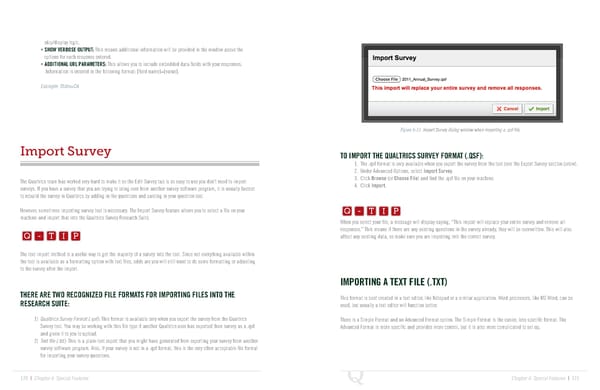
skip/display logic. • SHOW VERBOSE OUTPUT: This means additional information will be provided in the window above the options for each response entered. • ADDITIONAL URL PARAMETERS: This allows you to include embedded data fields with your responses. Information is entered in the following format: [field name]=[value]. Example: State=CA Figure 6-11 Import Survey dialog window when importing a .qsf file. Import Survey TO IMPORT THE QUALTRICS SURVEY FORMAT (.QSF): 1. The .qsf format is only available when you export the survey from the tool (see the Export Survey section below). 2. Under Advanced Options, select Import Survey. The Qualtrics team has worked very hard to make it so the Edit Survey tab is so easy to use you don’t need to import 3. Click Browse (or Choose File) and find the .qsf file on your machine. Q-TIP -TIP surveys. If you have a survey that you are trying to bring over from another survey software program, it is usually fastest 4. Click Import. to rebuild the survey in Qualtrics by adding in the questions and pasting in your question text. Q - T I P Q-TIP -TIP However, sometimes importing survey text is necessary. The Import Survey feature allows you to select a file on your Q - T I P machine and import that into the Qualtrics Survey Research Suite. When you select your file, a message will display saying, “This import will replace your entire survey and remove all Q - T I P - T I P responses.” This means if there are any existing questions in the survey already, they will be overwritten. This will also Q - T I P affect any existing data, so make sure you are importing into the correct survey. - T I P The text import method is a useful way to get the majority of a survey into the tool. Since not everything available within the tool is available as a formatting option with text files, odds are you will still want to do some formatting or adjusting to the survey after the import. IMPORTING A TEXT FILE (.TXT) THERE ARE TWO RECOGNIZED FILE FORMATS FOR IMPORTING FILES INTO THE RESEARCH SUITE: This format is best created in a text editor, like Notepad or a similar application. Word processors, like MS Word, can be used, but usually a text editor will function better. 1) Qualtrics Survey Format (.qsf): This format is available only when you export the survey from the Qualtrics There is a Simple Format and an Advanced Format option. The Simple Format is the easier, less specific format. The Survey tool. You may be working with this file type if another Qualtrics user has exported their survey as a .qsf Advanced Format is more specific and provides more control, but it is also more complicated to set up. and given it to you to upload. 2) Text file (.txt): This is a plain-text export that you might have generated from exporting your survey from another survey software program. Also, if your survey is not in a .qsf format, this is the only other acceptable file format for importing your survey questions. 120 | Chapter 6: Special Features Chapter 6: Special Features | 121
 The Complete Research Suite Page 60 Page 62