
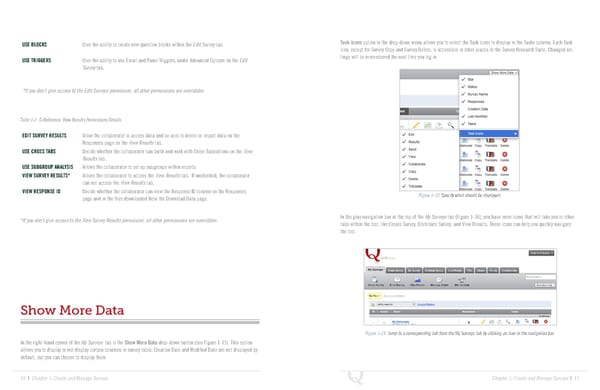
USE BLOCKS Give the ability to create new question blocks within the Edit Survey tab. Task Icons option in the drop-down menu allows you to select the Task icons to display in the Tasks column. Each Task icon, except for Survey Copy and Survey Delete, is accessible in other places in the Survey Research Suite. Changed set- USE TRIGGERS Give the ability to use Email and Panel Triggers, under Advanced Options on the Edit tings will be remembered the next time you log in. Survey tab. *If you don’t give access to the Edit Surveys permission, all other permissions are overridden Table 1-2 Q-Reference: View Results Permissions Details EDIT SURVEY RESULTS Allow the collaborator to access data and be able to delete or import data on the Responses page on the View Results tab. USE CROSS TABS Decide whether the collaborator can build and work with Cross Tabulations on the View Results tab. USE SUBGROUP ANALYSIS Allows the collaborator to set up subgroups within reports. VIEW SURVEY RESULTS* Allows the collaborator to access the View Results tab. If unchecked, the collaborator can not access the View Results tab. VIEW RESPONSE ID Decide whether the collaborator can view the Response ID column on the Responses Figure 1-15 Specify what should be displayed. page and in the files downloaded from the Download Data page. *If you don’t give access to the View Survey Results permission, all other permissions are overridden. In the gray navigation bar at the top of the My Surveys tab (Figure 1-16), you have more icons that will take you to other tabs within the tool, like Create Survey, Distribute Survey, and View Results. These icons can help you quickly navigate the tool. Show More Data Figure 1-16 Jump to a corresponding tab from the My Surveys tab by clicking an icon in the navigation bar. In the right-hand corner of the My Surveys tab is the Show More Data drop-down button (see Figure 1-15). This option allows you to display or not display certain columns in survey table. Creation Date and Modified Date are not displayed by default, but you can choose to display them. 16 | Chapter 1: Create and Manage Surveys Chapter 1: Create and Manage Surveys | 17
 The Complete Research Suite Page 8 Page 10