
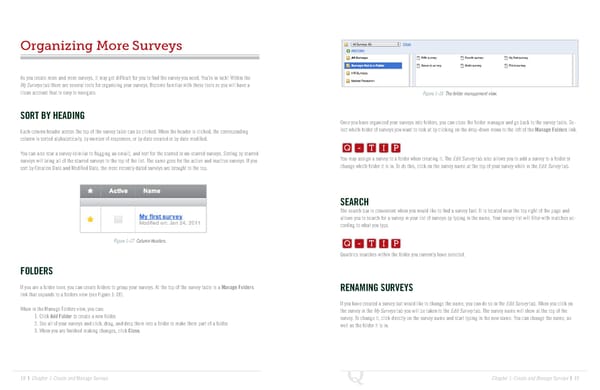
Organizing More Surveys As you create more and more surveys, it may get difficult for you to find the survey you need. You’re in luck! Within the My Surveys tab there are several tools for organizing your surveys. Become familiar with these tools so you will have a clean account that is easy to navigate. Figure 1-18 The folder management view. SORT BY HEADING Q-TIP -TIP Once you have organized your surveys into folders, you can close the folder manager and go back to the survey table. Se- Each column header across the top of the survey table can be clicked. When the header is clicked, the corresponding lect which folder of surveys you want to look at by clicking on the drop-down menu to the left of the Manage Folders link. column is sorted alphabetically, by number of responses, or by date created or by date modified. Q - T I P Q - T I P You can also star a survey (similar to flagging an email), and sort for the starred or un-starred surveys. Sorting by starred surveys will bring all of the starred surveys to the top of the list. The same goes for the active and inactive surveys. If you You may assign a survey to a folder when creating it. The Edit Survey tab also allows you to add a survey to a folder or - T I P sort by Creation Date and Modified Date, the most recently dated surveys are brought to the top. change which folder it is in. To do this, click on the survey name at the top of your survey while in the Edit Survey tab. SEARCH The search bar is convenient when you would like to find a survey fast. It is located near the top right of the page and Q-TIP -TIP allows you to search for a survey in your list of surveys by typing in the name. Your survey list will filter with matches ac- cording to what you type. Q - T I P Figure 1-17 Column Headers. Q - T I P Qualtrics searches within the folder you currently have selected. - T I P FOLDERS If you are a folder lover, you can create folders to group your surveys. At the top of the survey table is a Manage Folders RENAMING SURVEYS link that expands to a folders view (see Figure 1-18). If you have created a survey but would like to change the name, you can do so in the Edit Survey tab. When you click on When in the Manage Folders view, you can: the survey in the My Surveys tab you will be taken to the Edit Survey tab. The survey name will show at the top of the 1. Click Add Folder to create a new folder. survey. To change it, click directly on the survey name and start typing in the new name. You can change the name, as 2. See all of your surveys and click, drag, and drop them into a folder to make them part of a folder. well as the folder it is in. 3. When you are finished making changes, click Close. 18 | Chapter 1: Create and Manage Surveys Chapter 1: Create and Manage Surveys | 19
 The Complete Research Suite Page 9 Page 11