
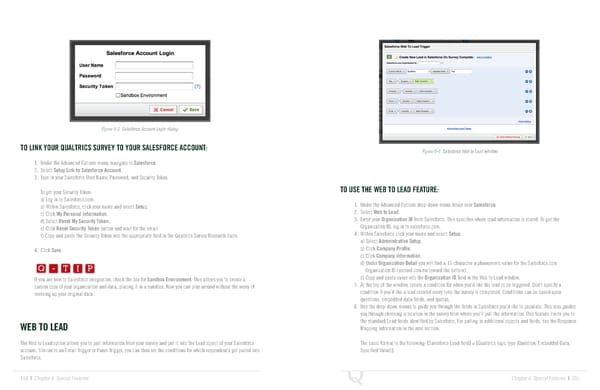
Figure 6-3 Salesforce Account Login dialog. TO LINK YOUR QUALTRICS SURVEY TO YOUR SALESFORCE ACCOUNT: Figure 6-4 Salesforce Web to Lead window. 1. Under the Advanced Options menu, navigate to Salesforce. 2. Select Setup Link to Salesforce Account. 3. Type in your Salesforce User Name, Password, and Security Token. TO USE THE WEB TO LEAD FEATURE: To get your Security Token: a) Log in to Salesforce.com. b) Within Salesforce, click your name and select Setup. 1. Under the Advanced Options drop-down menu, hover over Salesforce. c) Click My Personal Information. 2. Select Web to Lead. d) Select Reset My Security Token. 3. Enter your Organization ID from Salesforce. This specifies where lead information is stored. To get the e) Click Reset Security Token button and wait for the email. Organization ID, log in to salesforce.com. f) Copy and paste the Security Token into the appropriate field in the Qualtrics Survey Research Suite. 4. Within Salesforce click your name and select Setup. Q-TIP -TIP a) Select Administrative Setup. 4. Click Save. b) Click Company Profile. Q - T I P c) Click Company Information. Q - T I P d) Under Organization Detail you will find a 15-character alphanumeric value for the Salesforce.com Organization ID (second column toward the bottom). If you are new to Salesforce integration, check the box for Sandbox Environment. This allows you to create a e) Copy and paste value into the Organization ID field in the Web to Lead window. - T I P 5. At the top of the window, create a condition for when you’d like the lead to be triggered. Don’t specify a carbon copy of your organization and data, placing it in a sandbox. Now you can play around without the worry of messing up your original data. condition if you’d like a lead created every time the survey is completed. Conditions can be based upon questions, embedded data fields, and quotas. 6. Use the drop-down menus to guide you through the fields in Salesforce you’d like to populate. This also guides you through choosing a location in the survey from where you’ll pull the information. This feature limits you to the standard Lead fields identified by Salesforce. For pulling in additional objects and fields, see the Response WEB TO LEAD Mapping information in the next section. The Web to Lead option allows you to pull information from your survey and put it into the Lead object of your Salesforce The basic format is the following: [Salesforce Lead field] = [Qualtrics logic type (Question, Embedded Data, account. Similar to an Email Trigger or Panel Trigger, you can then set the conditions for which respondents get pulled into Specified Value)]. Salesforce. 104 | Chapter 6: Special Features Chapter 6: Special Features | 105
 The Complete Research Suite Page 52 Page 54