
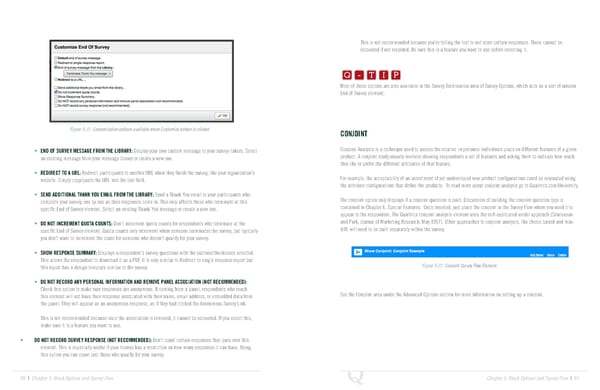
This is not recommended because you’re telling the tool to not store certain responses. These cannot be Q-TIP -TIP recovered if not recorded. Be sure this is a feature you want to use before selecting it. Q - T I P Q - T I P Most of these options are also available in the Survey Termination area of Survey Options, which acts as a sort of unseen - T I P End of Survey element. Figure 5-21 Customization options available when Customize button is clicked. CONJOINT • END OF SURVEY MESSAGE FROM THE LIBRARY: Display your own custom message to your survey-takers. Select Conjoint Analysis is a technique used to assess the relative importance individuals place on different features of a given an existing message from your message library or create a new one. product. A conjoint study usually involves showing respondents a set of features and asking them to indicate how much they like or prefer the different attributes of that feature. • REDIRECT TO A URL: Redirect participants to another URL when they finish the survey, like your organization’s website. Simply copy/paste the URL into the text field. For example, the acceptability of an assortment of yet undeveloped new product configurations could be evaluated using the attribute configurations that define the products. To read more about conjoint analysis go to Qualtrics.com/University. • SEND ADDITIONAL THANK YOU EMAIL FROM THE LIBRARY: Send a Thank You email to your participants who complete your survey, one by one as their responses come in. This only affects those who terminate at this The conjoint option only displays if a conjoint question is built. Discussion of building the conjoint question type is specific End of Survey element. Select an existing Thank You message or create a new one. contained in Chapter 6, Special Features. Once inserted, just place the conjoint in the Survey Flow where you need it to appear to the respondent. The Qualtrics conjoint analysis element uses the self-explicated model approach (Srinivasan • DO NOT INCREMENT QUOTA COUNTS: Don’t increment quota counts for respondents who terminate at the and Park, Journal of Marketing Research, May 1997). Other approaches to conjoint analysis, like choice based and max- specific End of Survey element. Quota counts only increment when someone terminates the survey, but typically diff, will need to be built separately within the survey. you don’t want to increment the count for someone who doesn’t qualify for your survey. • SHOW RESPONSE SUMMARY: Displays a respondent’s survey questions with the buttons/checkboxes selected. This allows the respondent to download it as a PDF. It is very similar to Redirect to single response report but this report has a design template similar to the survey. Figure 5-22 Conjoint Survey Flow Element. • DO NOT RECORD ANY PERSONAL INFORMATION AND REMOVE PANEL ASSOCIATION (NOT RECOMMENDED): Check this option to make sure responses are anonymous. If coming from a panel, respondents who reach this element will not have their response associated with their name, email address, or embedded data from See the Conjoint area under the Advanced Options section for more information on setting up a conjoint. the panel. They will appear as an anonymous response, as if they had clicked the Anonymous Survey Link. This is not recommended because once the association is removed, it cannot be recovered. If you select this, make sure it is a feature you want to use. • DO NOT RECORD SURVEY RESPONSE (NOT RECOMMENDED): Don’t count certain responses that pass over this element. This is especially useful if your license has a restriction on how many responses it can have. Using this option you can count just those who qualify for your survey. 96 | Chapter 5: Block Options and Survey Flow Chapter 5: Block Options and Survey Flow | 97
 The Complete Research Suite Page 48 Page 50