
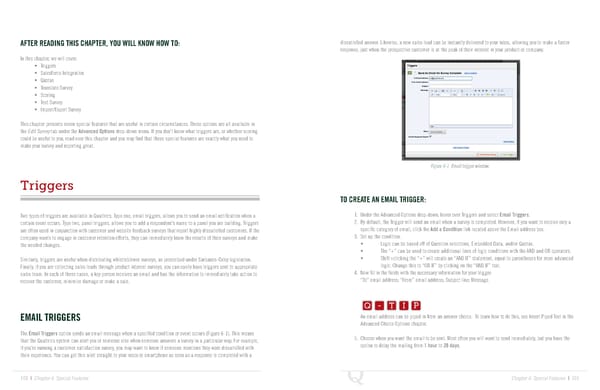
AFTER READING THIS CHAPTER, YOU WILL KNOW HOW TO: dissatisfied answer. Likewise, a new sales lead can be instantly delivered to your inbox, allowing you to make a faster response, just when the prospective customer is at the peak of their interest in your product or company. In this chapter, we will cover: • Triggers • SalesForce Integration • Quotas • Translate Survey • Scoring • Test Survey • Import/Export Survey This chapter presents seven special features that are useful in certain circumstances. These options are all available in the Edit Survey tab under the Advanced Options drop-down menu. If you don’t know what triggers are, or whether scoring could be useful to you, read over this chapter and you may find that these special features are exactly what you need to make your survey and reporting great. Figure 6-1 Email trigger window. Triggers TO CREATE AN EMAIL TRIGGER: Two types of triggers are available in Qualtrics. Type one, email triggers, allows you to send an email notification when a 1. Under the Advanced Options drop-down, hover over Triggers and select Email Triggers. certain event occurs. Type two, panel triggers, allows you to add a respondent’s name to a panel you are building. Triggers 2. By default, the Trigger will send an email when a survey is completed. However, if you want to receive only a are often used in conjunction with customer and website feedback surveys that report highly dissatisfied customers. If the specific category of email, click the Add a Condition link located above the Email address box. company wants to engage in customer retention efforts, they can immediately know the results of their surveys and make 3. Set up the condition. the needed changes. • Logic can be based off of Question selections, Embedded Data, and/or Quotas. • The “+” can be used to create additional lines of logic conditions with the AND and OR operators. Similarly, triggers are useful when distributing whistleblower surveys, as prescribed under Sarbanes-Oxley legislation. • Shift+clicking the “+” will create an “AND IF” statement, equal to parentheses for more advanced Finally, if you are collecting sales leads through product interest surveys, you can easily have triggers sent to appropriate logic. Change this to “OR IF” by clicking on the “AND IF” text. sales team. In each of these cases, a key person receives an email and has the information to immediately take action to 4. Now fill in the fields with the necessary information for your trigger: Q-TIP -TIP recover the customer, minimize damage or make a sale. “To” email address; “From” email address; Subject line; Message. Q - T I P Q - T I P EMAIL TRIGGERS An email address can be piped in from an answer choice. To learn how to do this, see Insert Piped Text in the - T I P Advanced Choice Options chapter. The Email Triggers option sends an email message when a specified condition or event occurs (Figure 6-1). This means 5. Choose when you want the email to be sent. Most often you will want to send immediately, but you have the that the Qualtrics system can alert you or someone else when someone answers a survey in a particular way. For example, option to delay the mailing from 1 hour to 28 days. if you’re running a customer satisfaction survey, you may want to know if someone mentions they were dissatisfied with their experience. You can get this alert straight to your inbox or smartphone as soon as a response is completed with a 100 | Chapter 6: Special Features Chapter 6: Special Features | 101
 The Complete Research Suite Page 50 Page 52