
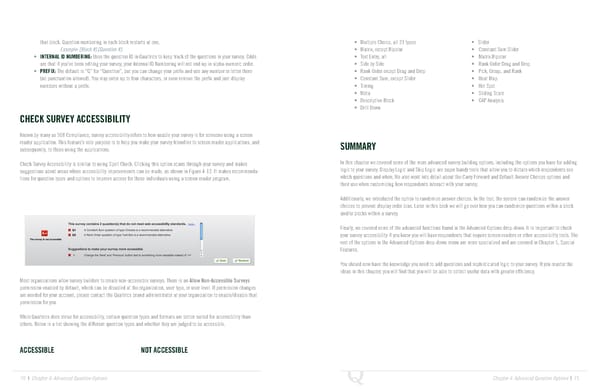
that block. Question numbering in each block restarts at one. • Multiple Choice, all 21 types • Slider Example: [Block #].[Question #]. • Matrix, except Bipolar • Constant Sum Slider • INTERNAL ID NUMBERING: Uses the question ID in Qualtrics to keep track of the questions in your survey. Odds • Text Entry, all • Matrix Bipolar are that if you’ve been editing your survey, your Internal ID Numbering will not end up in alpha-numeric order. • Side by Side • Rank Order Drag and Drop • PREFIX: The default is “Q” for “Question”, but you can change your prefix and use any number or letter there • Rank Order except Drag and Drop • Pick, Group, and Rank (no punctuation allowed). You may enter up to four characters, or even remove the prefix and just display • Constant Sum, except Slider • Heat Map numbers without a prefix. • Timing • Hot Spot • Meta • Sliding Scale • Descriptive Block • GAP Analysis • Drill Down CHECK SURVEY ACCESSIBILITY Known by many as 508 Compliance, survey accessibility refers to how usable your survey is for someone using a screen reader application. This feature’s sole purpose is to help you make your survey friendlier to screen reader applications, and SUMMARY subsequently, to those using the applications. Check Survey Accessibility is similar to using Spell Check. Clicking this option scans through your survey and makes In this chapter we covered some of the more advanced survey building options, including the options you have for adding suggestions about areas where accessibility improvements can be made, as shown in Figure 4-12. It makes recommenda- logic to your survey. Display Logic and Skip Logic are super handy tools that allow you to dictate which respondents see tions for question types and options to improve access for those individuals using a screen reader program. which questions and when. We also went into detail about the Carry Forward and Default Answer Choices options and their use when customizing how respondents interact with your survey. Additionally, we introduced the option to randomize answer choices. In the tool, the system can randomize the answer choices to prevent display order bias. Later in this book we will go over how you can randomize questions within a block and/or blocks within a survey. Finally, we covered some of the advanced functions found in the Advanced Options drop-down. It is important to check your survey accessibility if you know you will have respondents that require screen readers or other accessibility tools. The rest of the options in the Advanced Options drop-down menu are more specialized and are covered in Chapter 5, Special Figure 4-12 Check Survey Accessibility in action. Features. You should now have the knowledge you need to add questions and sophisticated logic to your survey. If you master the ideas in this chapter, you will find that you will be able to collect useful data with greater efficiency. Most organizations allow survey builders to create non-accessible surveys. There is an Allow Non-Accessible Surveys permission enabled by default, which can be disabled at the organization, user type, or user level. If permission changes are needed for your account, please contact the Qualtrics brand administrator at your organization to enable/disable that permission for you. While Qualtrics does strive for accessibility, certain question types and formats are better suited for accessibility than others. Below is a list showing the different question types and whether they are judged to be accessible. ACCESSIBLE NOT ACCESSIBLE 70 | Chapter 4: Advanced Question Options Chapter 4: Advanced Question Options | 71
 The Complete Research Suite Page 35 Page 37