
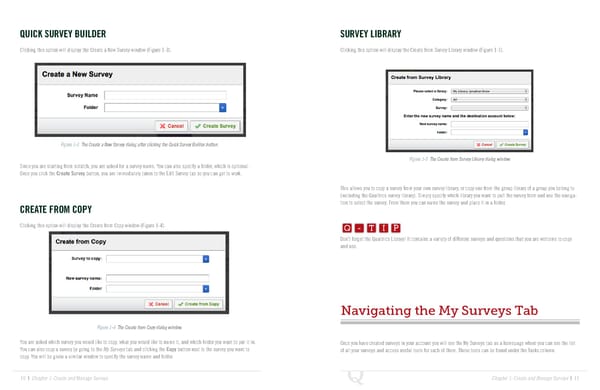
QUICK SURVEY BUILDER SURVEY LIBRARY Clicking this option will display the Create a New Survey window (Figure 1-3). Clicking this option will display the Create from Survey Library window (Figure 1-5). Figure 1-3 The Create a New Survey dialog after clicking the Quick Survey Builder button. Figure 1-5 The Create from Survey Library dialog window. Since you are starting from scratch, you are asked for a survey name. You can also specify a folder, which is optional. Once you click the Create Survey button, you are immediately taken to the Edit Survey tab so you can get to work. This allows you to copy a survey from your own survey library, or copy one from the group library of a group you belong to (including the Qualtrics survey library). Simply specify which library you want to pull the survey from and use the naviga- Q-TIP -TIP CREATE FROM COPY tion to select the survey. From there you can name the survey and place it in a folder. Q - T I P Clicking this option will display the Create from Copy window (Figure 1-4). Q - T I P Don’t forget the Qualtrics Library! It contains a variety of different surveys and questions that you are welcome to copy - T I P and use. Navigating the My Surveys Tab Figure 1-4 The Create from Copy dialog window. You are asked which survey you would like to copy, what you would like to name it, and which folder you want to put it in. Once you have created surveys in your account you will see the My Surveys tab as a homepage where you can see the list You can also copy a survey by going to the My Surveys tab and clicking the Copy button next to the survey you want to of all your surveys and access useful tools for each of them. These tools can be found under the Tasks column. copy. You will be given a similar window to specify the survey name and folder. 10 | Chapter 1: Create and Manage Surveys Chapter 1: Create and Manage Surveys | 11
 The Complete Research Suite Page 5 Page 7