
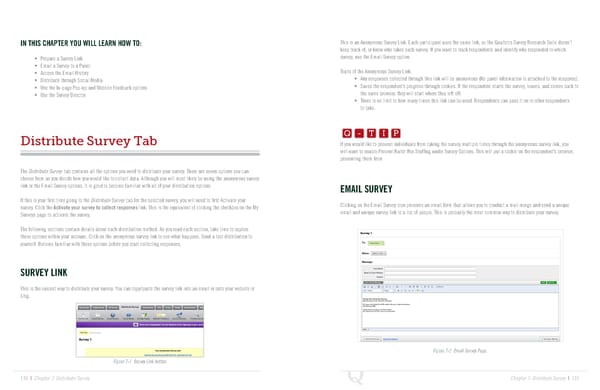
IN THIS CHAPTER YOU WILL LEARN HOW TO: This is an Anonymous Survey Link. Each participant uses the same link, so the Qualtrics Survey Research Suite doesn’t keep track of, or know who takes each survey. If you want to track respondents and identify who responded to which • Prepare a Survey Link survey, use the Email Survey option. • Email a Survey to a Panel • Access the Email History Traits of the Anonymous Survey Link: • Distribute through Social Media • Any responses collected through this link will be anonymous (No panel information is attached to the response). • Use the In-page Pop-up and Website Feedback options • Saves the respondent’s progress through cookies. If the respondent starts the survey, leaves, and comes back to • Use the Survey Director the same browser, they will start where they left off. • There is no limit to how many times this link can be used. Respondents can pass it on to other respondents Q-TIP -TIP to take. Q - T I P Distribute Survey Tab Q - T I P If you would like to prevent individuals from taking the survey multiple times through the anonymous survey link, you - T I P will want to enable Prevent Ballot Box Stuffing under Survey Options. This will put a cookie on the respondent’s browser, preventing them from The Distribute Survey tab contains all the options you need to distribute your survey. There are seven options you can choose from as you decide how you would like to collect data. Although you will most likely be using the anonymous survey link or the Email Survey options, it is good to become familiar with all of your distribution options. EMAIL SURVEY If this is your first time going to the Distribute Survey tab for the selected survey, you will need to first Activate your Clicking on the Email Survey icon presents an email form that allows you to conduct a mail merge and send a unique survey. Click the Activate your survey to collect responses link. This is the equivalent of clicking the checkbox on the My email and unique survey link to a list of people. This is probably the most common way to distribute your survey. Surveys page to activate the survey. The following sections contain details about each distribution method. As you read each section, take time to explore these options within your account. Click on the anonymous survey link to see what happens. Send a test distribution to yourself. Become familiar with these options before you start collecting responses. SURVEY LINK This is the easiest way to distribute your survey. You can copy/paste the survey link into an email or onto your website or blog. Figure 7-2 Email Survey Page. Figure 7-1 Survey Link button. 130 | Chapter 7: Distribute Survey Chapter 7: Distribute Survey | 131
 The Complete Research Suite Page 65 Page 67